Creating and Editing Categories
Categories are used to identify or designate how money is received or spent. Categories are used for labeling donations (on the Giving Screen), but they are also used for categorizing transactions and creating budgets (on the Accounting Screen).
If you're switching from QuickBooks or another church bookkeeping software that uses a "chart of accounts", you will convert many of those over to Categories in ChurchTrac.
Creating Categories
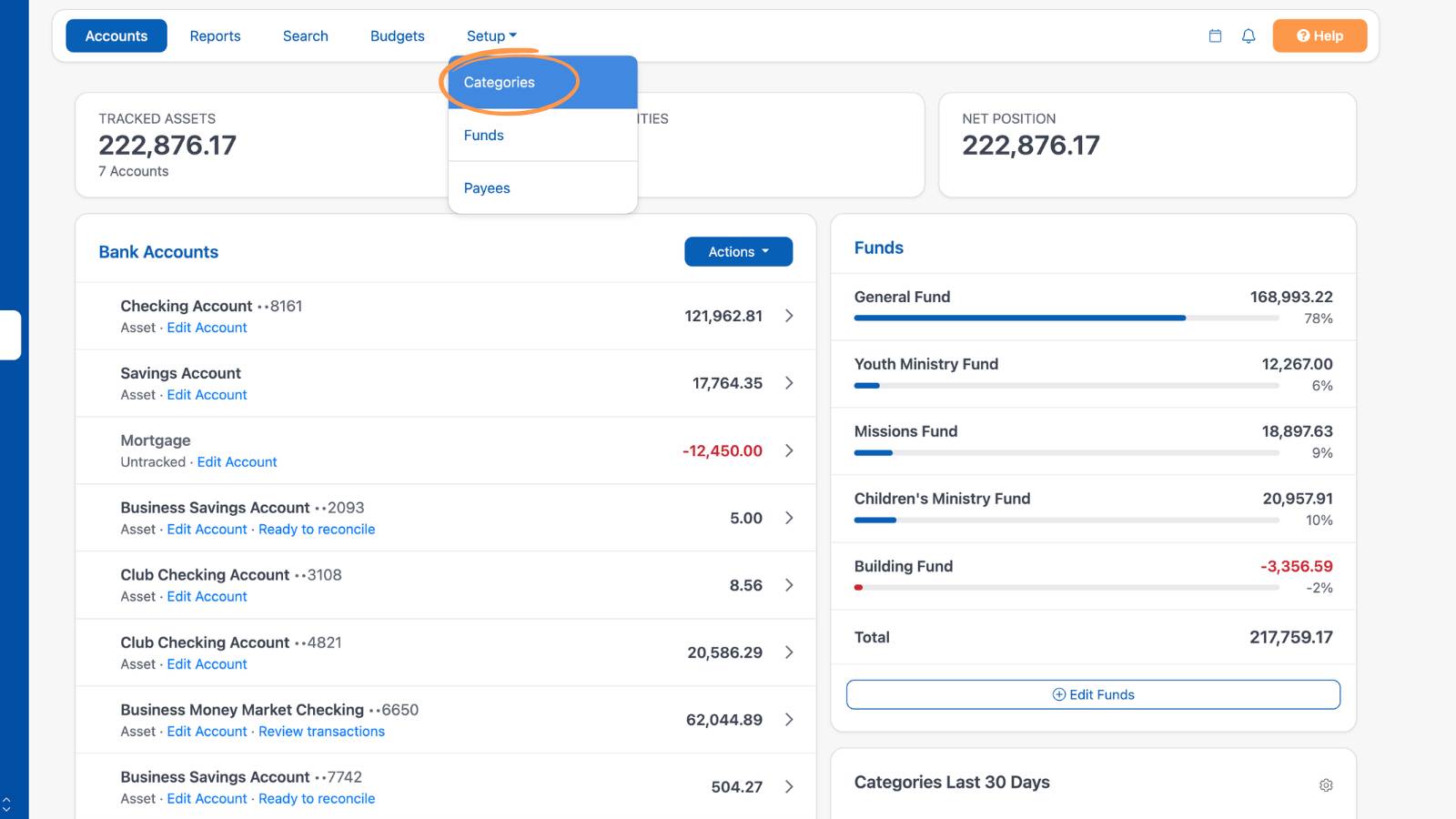
To view, edit, and create categories, select Setup on the Accounting screen's toolbar, then Categories.
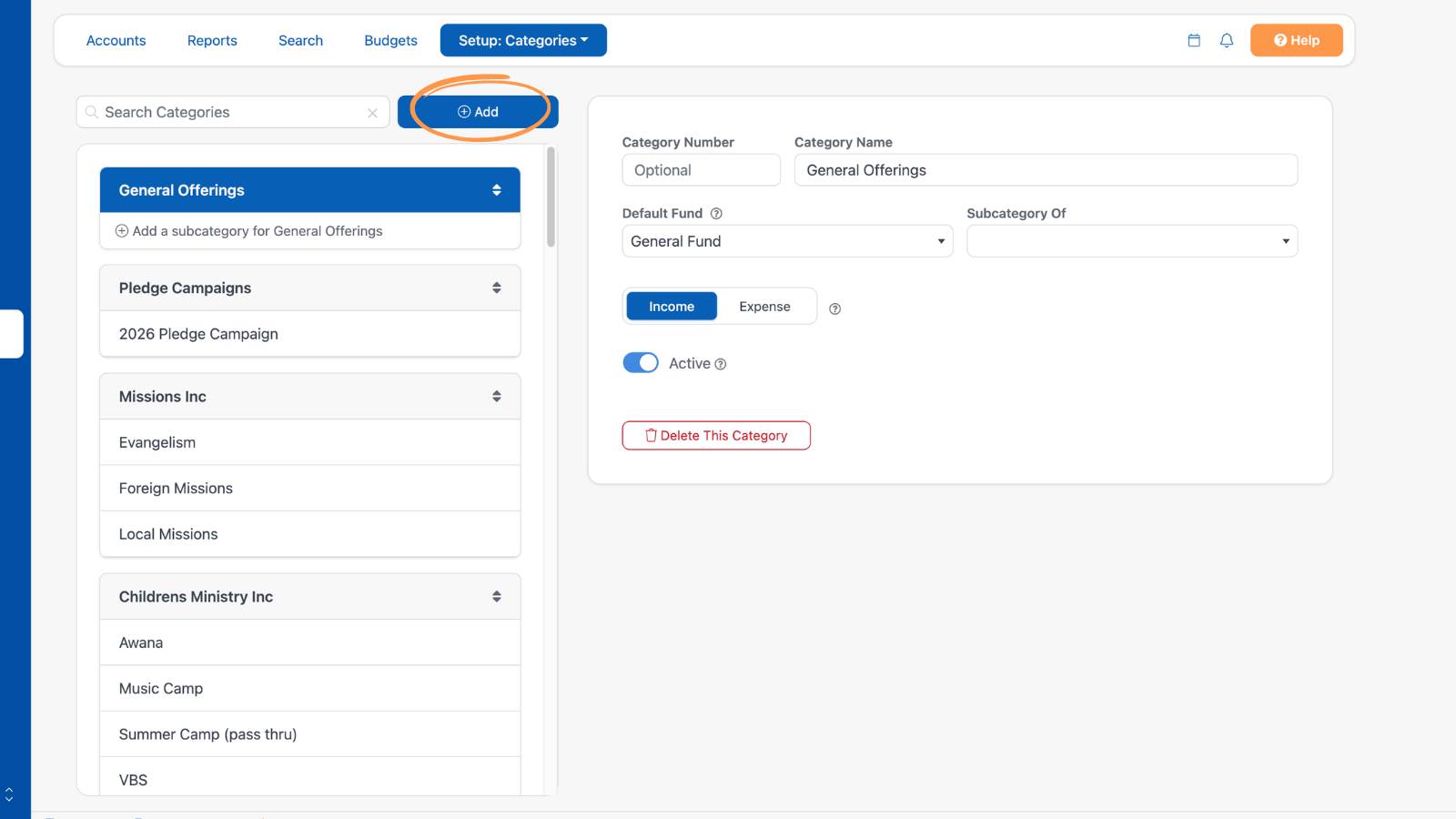
Your categories are listed on the left, with each parent category followed by its subcategories. Use the Search Categories box to quickly find a category. The details for the selected category appear on the right.
Step 1: Add a New Category
Select Add, then type the Category Name. The Category Number is optional.
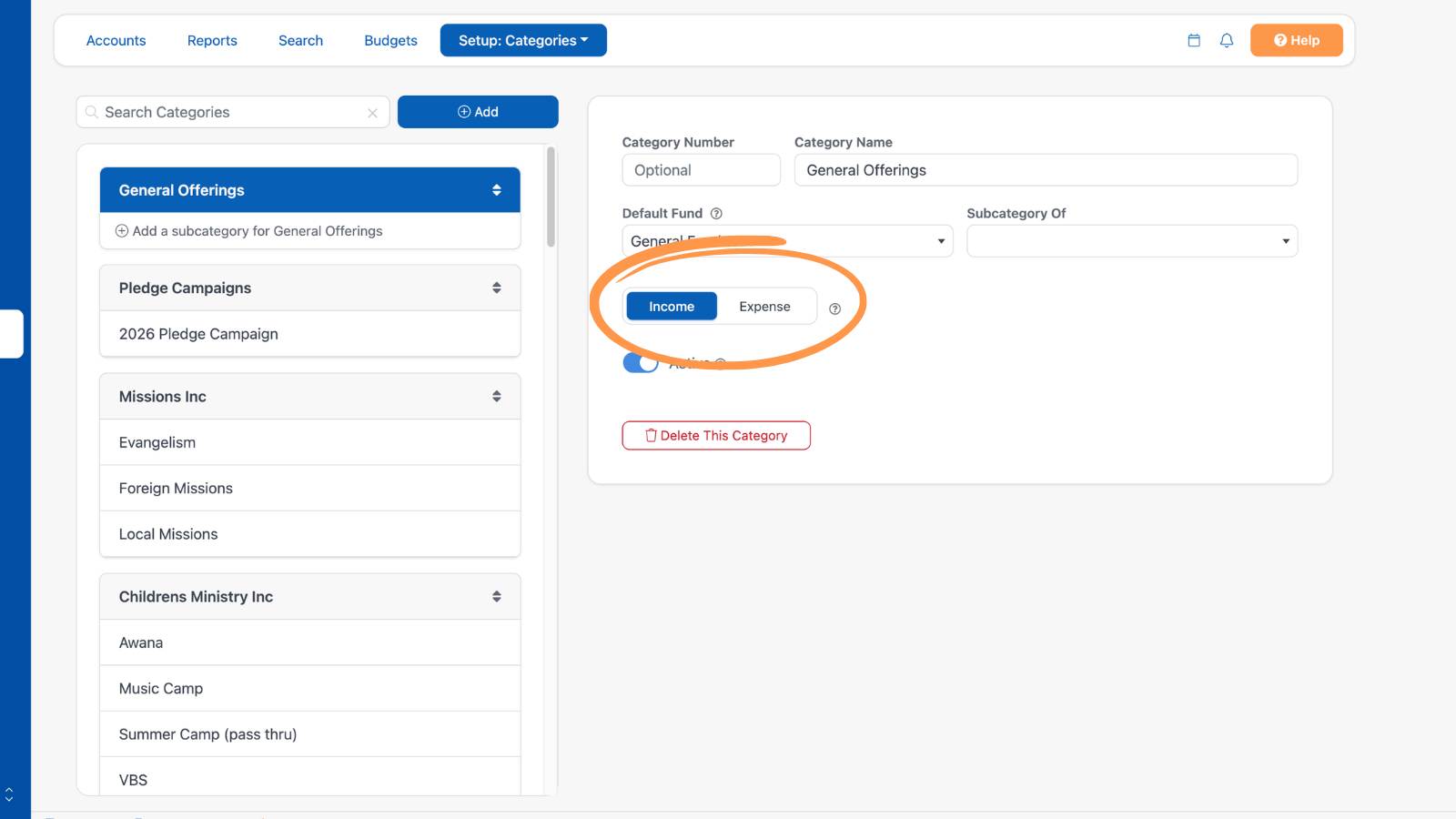
Step 2: Customize Your Categories: Income or Expense
To accurately reflect your financial activity, create separate categories for income and expenses and set each one's type using the Income / Expense switch.
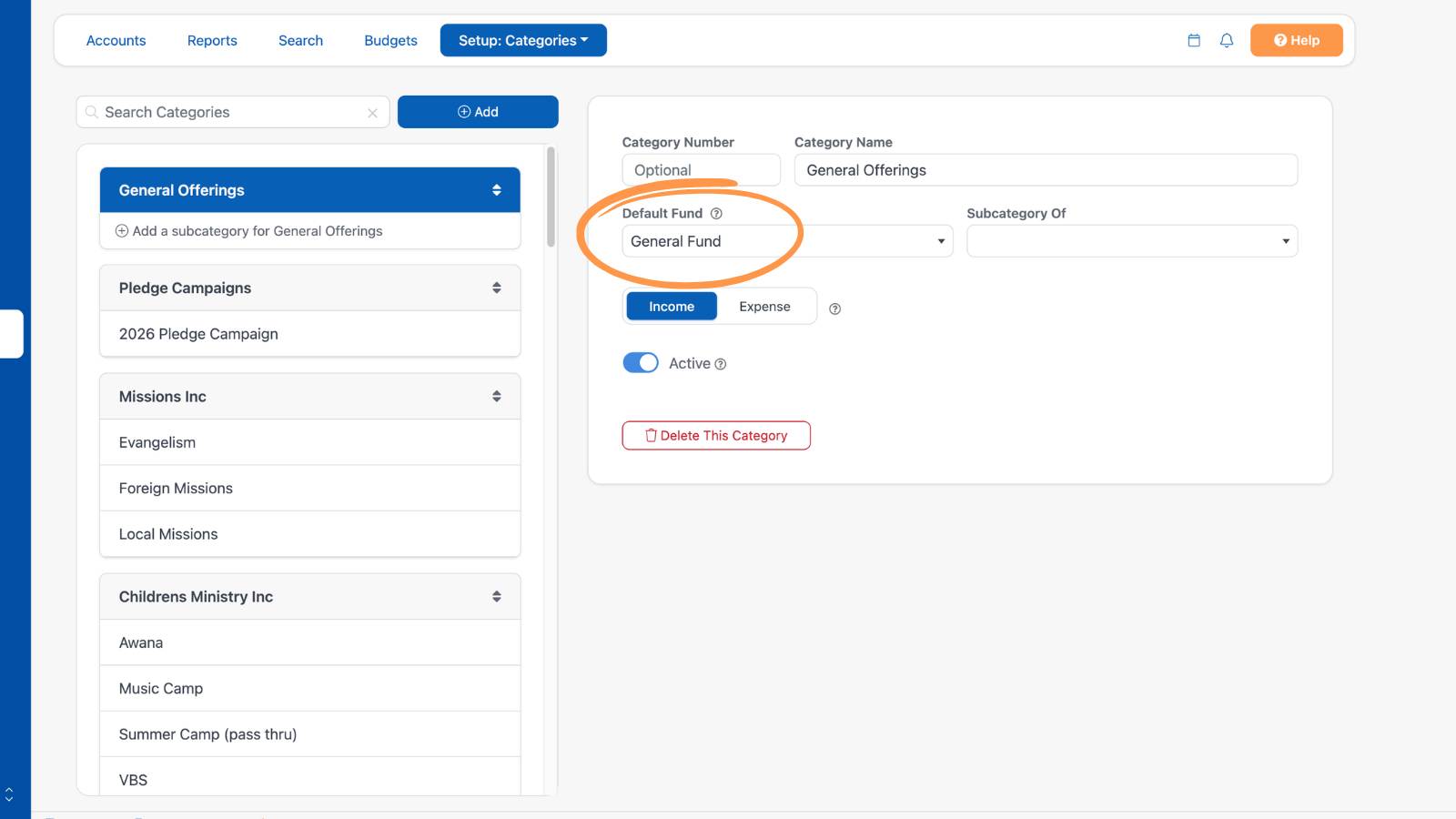
Step 3: Choose a Default Fund
You must also assign each category to a Fund in the "Default Fund" field. This step is crucial. Without it, you won't be able to track how money is deposited into or spent from your designated Funds.
Examples of Categories: Children's Ministry
In the following example, we create income and expense categories, along with subcategories, for Children's Ministry. You can use this approach to organize all of your categories.
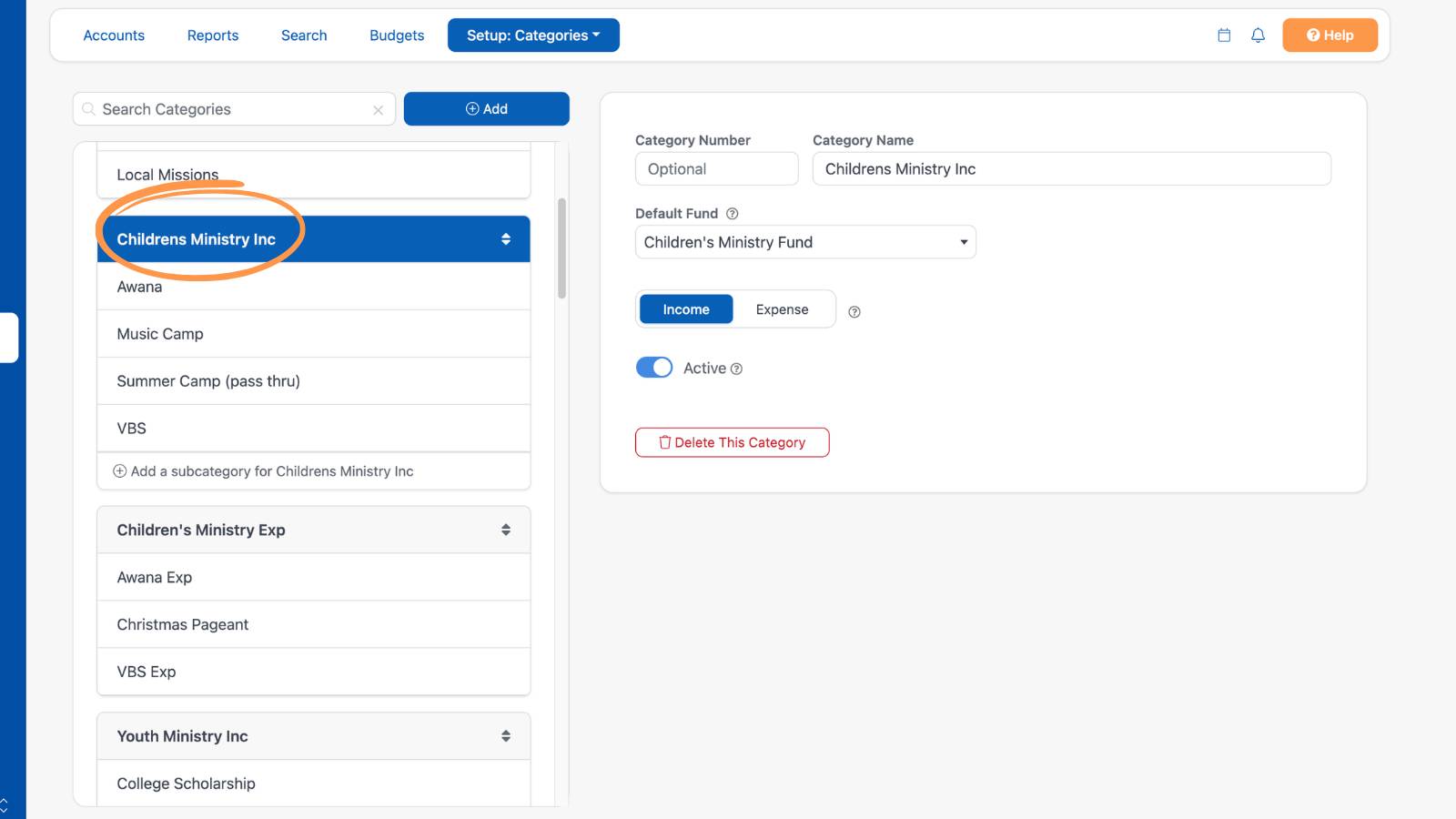
Income Category
Create a category called "Children's Ministry Income" and set it to Income.
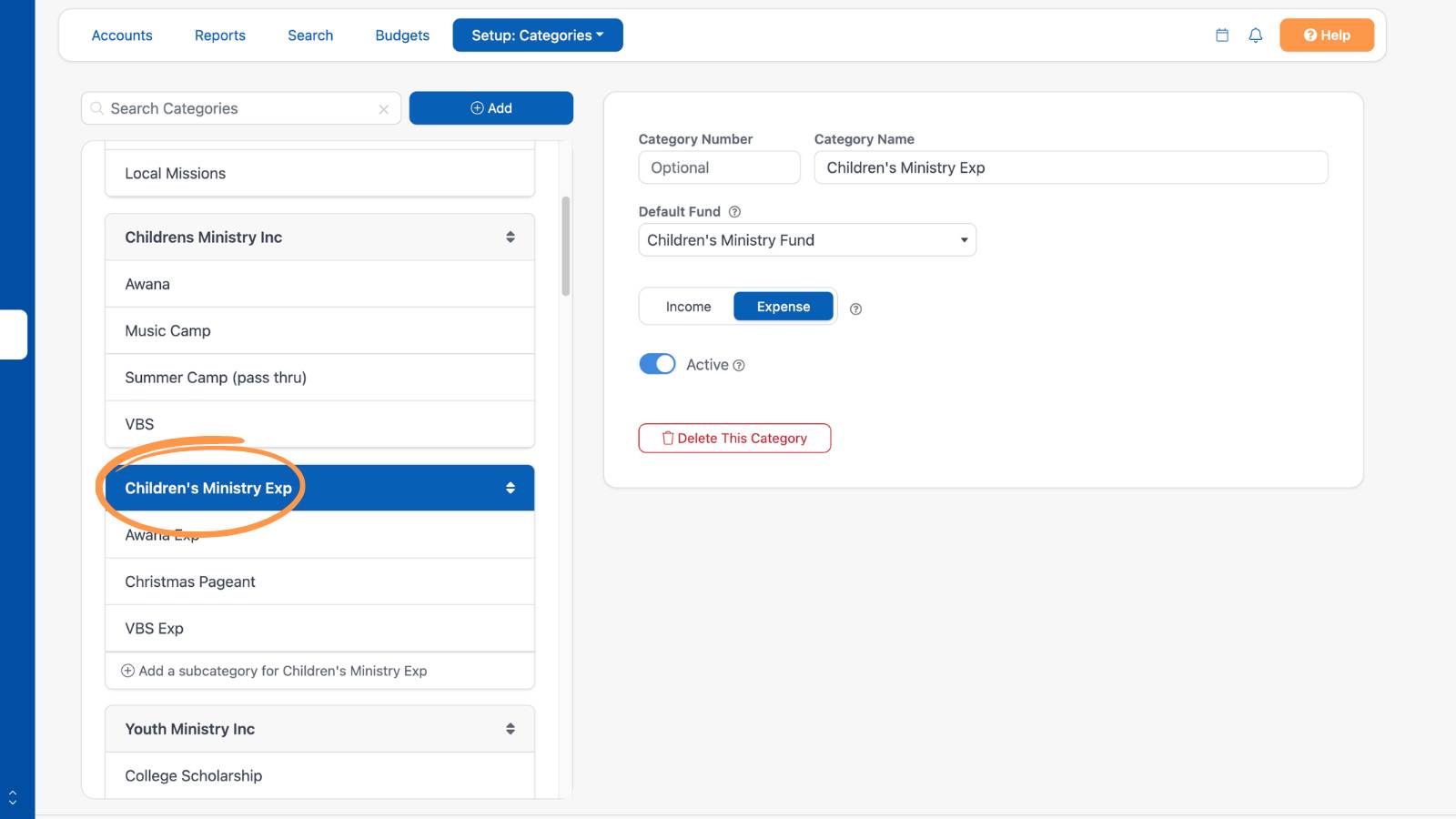
Expense Category
Create a category called "Children's Ministry Expense" and set it to Expense.
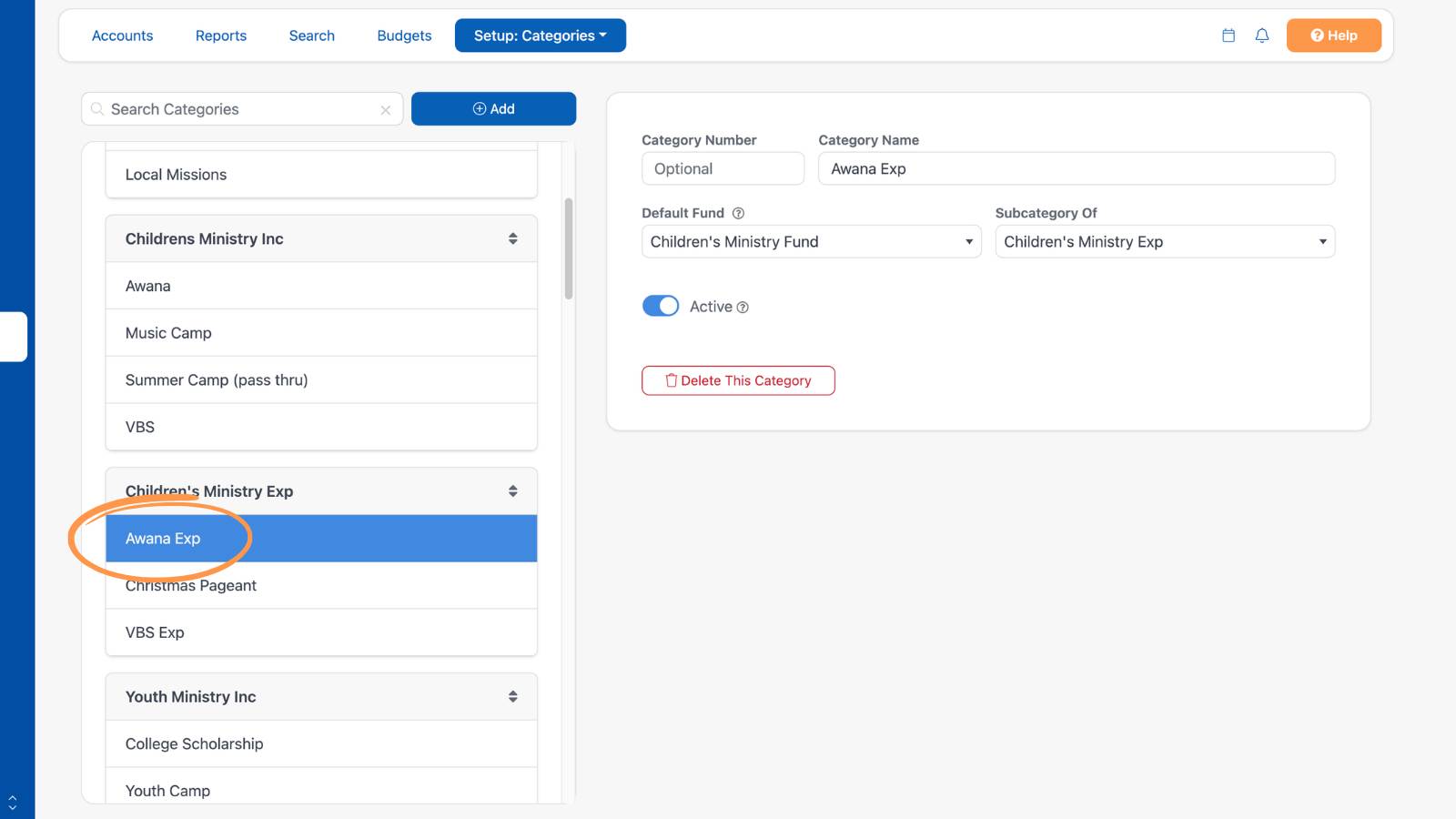
Subcategories
Under the expense category, add subcategories like "Awana Expense" and "VBS Expense" to track your spending in more detail.
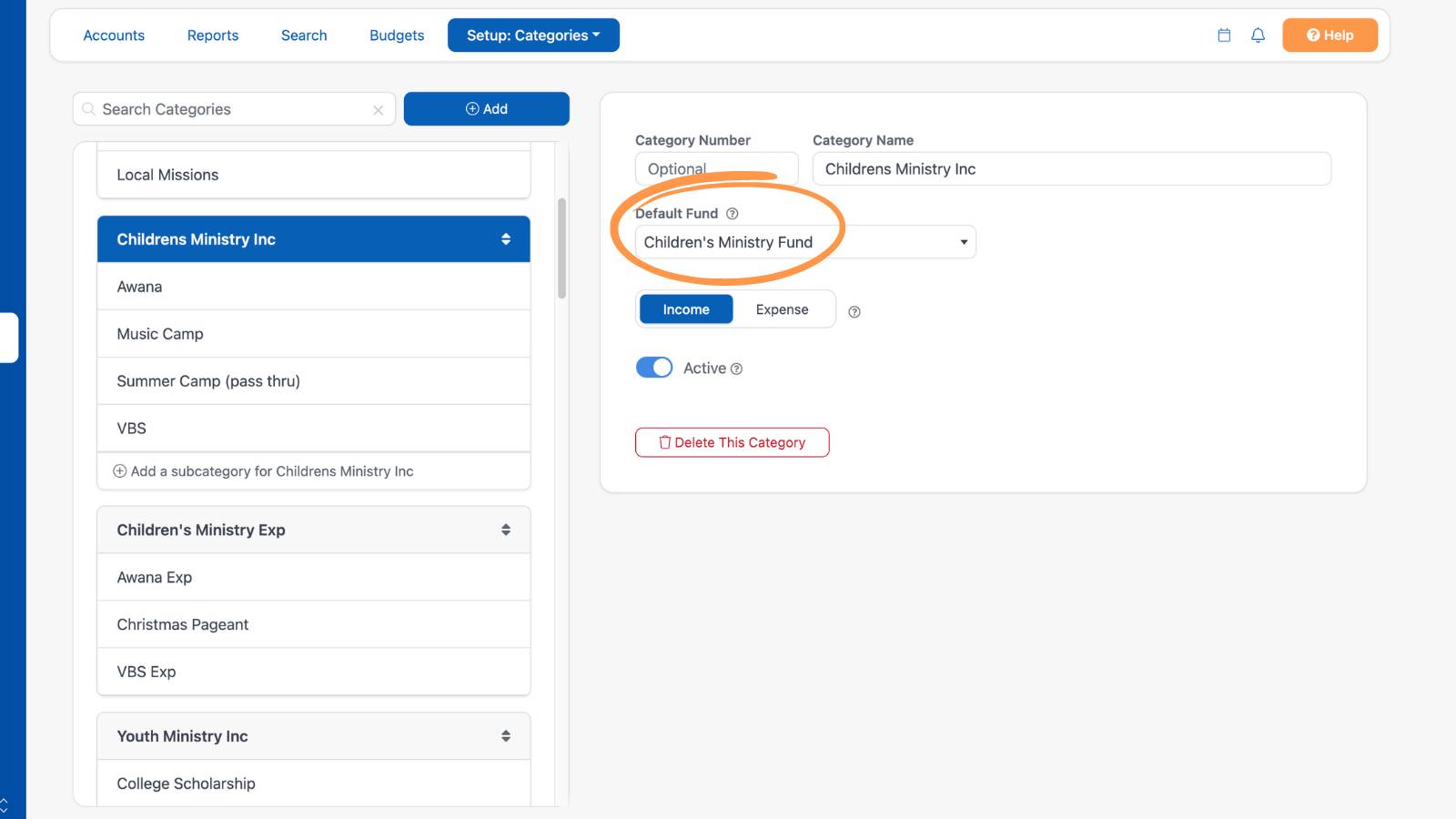
Default Fund
Create a Fund called "Children's Ministry Fund" and set it as the Default Fund for these categories, so you can track how money is deposited into and spent from your Children's Ministry.
Editing Categories
There are occasions when you may need to rename, rearrange, deactivate, or delete a category.
Editing Category Name and Details
Select the name of a Category or Subcategory in the list. Its details appear on the right, where you can change the Category Number, Category Name, Default Fund, Subcategory Of, or Income / Expense type at any time.
Making a Category Inactive
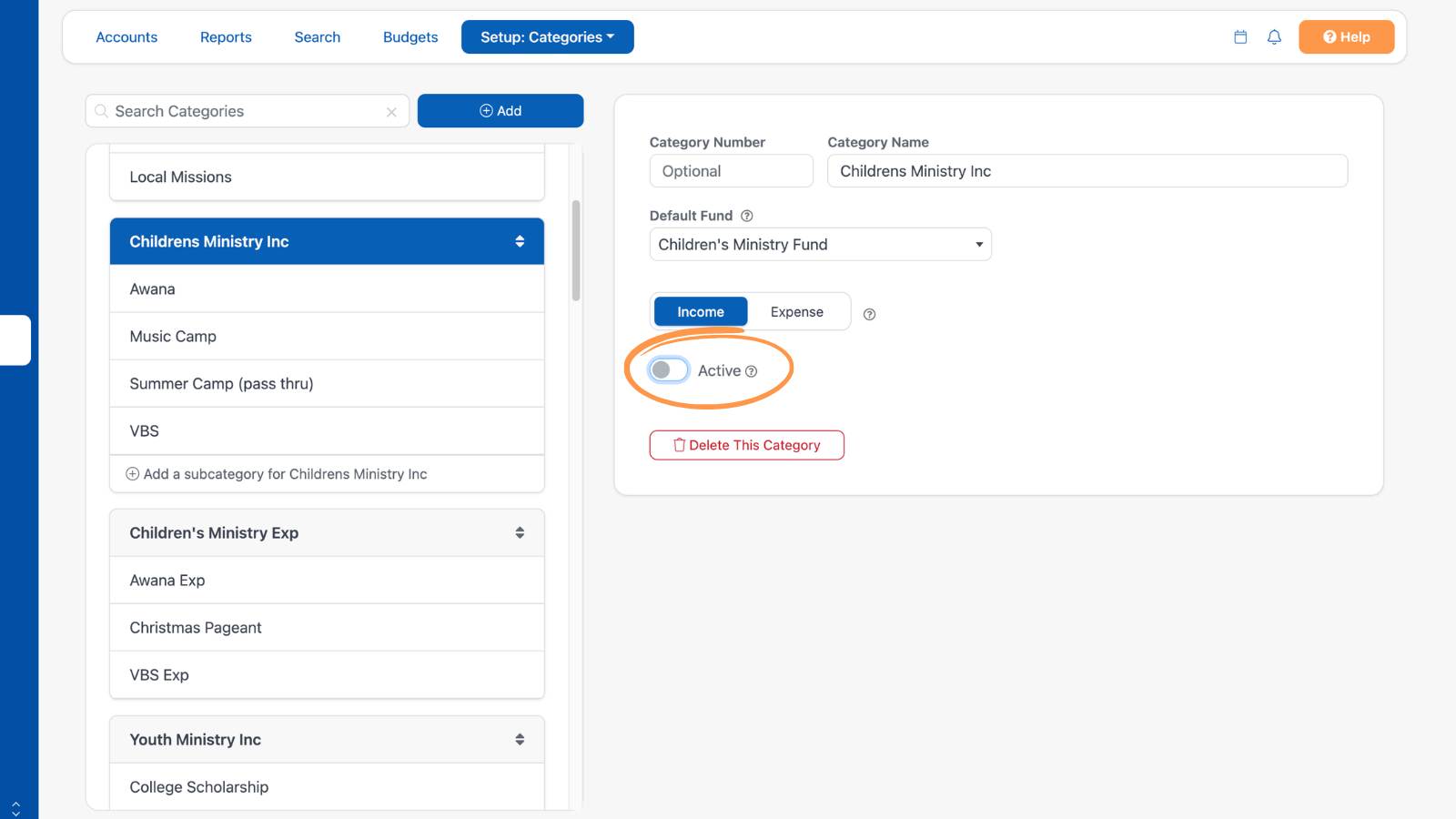
Turn off the Active switch to retire a category you no longer use without deleting it or its history.
Deleting Categories
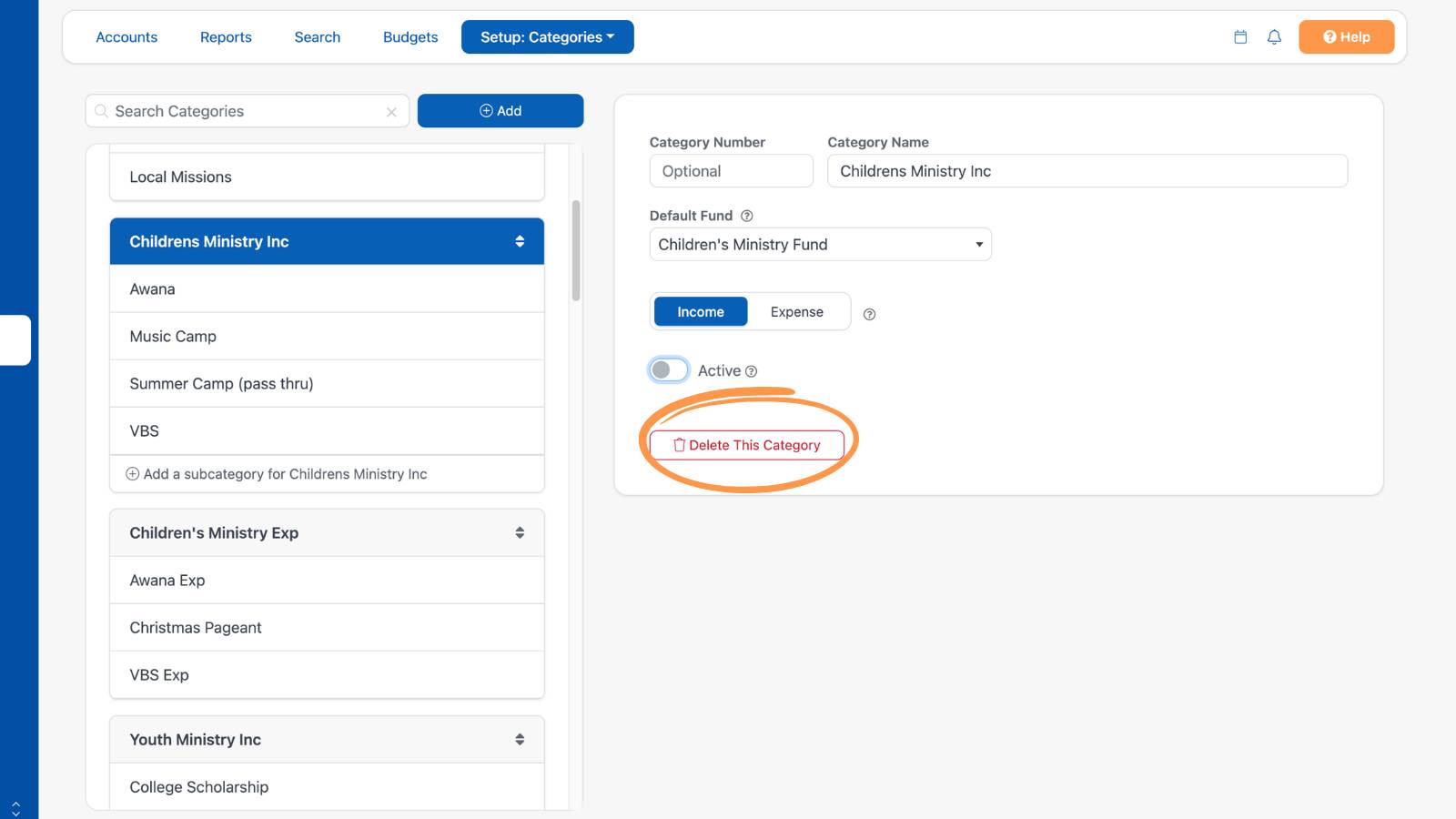
Select the category, then select Delete This Category. ChurchTrac checks whether the category is in use on the Giving screen or the Accounting screen. If donations or transactions use it, ChurchTrac will prompt you to reassign that money to another category.
Rearrange Categories
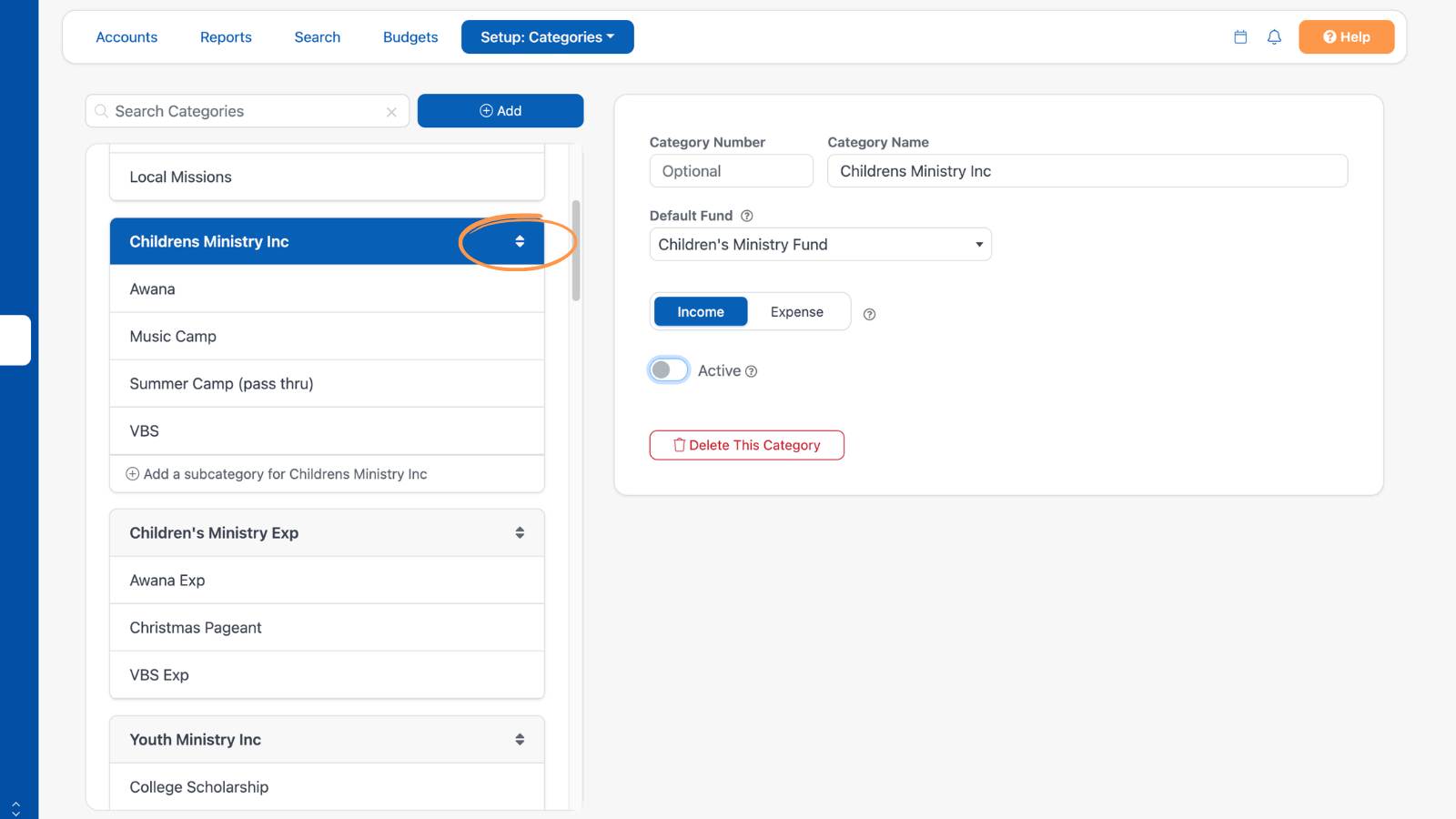
To change the order of your categories, select and hold the up/down arrows to the right of a category's name and drag it to a new position. To sort subcategories, give them sequential Category Numbers in the order you want them to appear under the parent.
Pro Tips
To avoid confusion with ChurchTrac Funds, we recommend that you do not use the word 'Fund' when naming your Category.
You can't have subcategories of subcategories. Only one level of nesting is used in ChurchTrac.
If you don’t need to track detailed income and expense records, you can simplify the process. For example, in the case of a love offering, the money is collected, counted, and a check is immediately written from the love offering category to the recipient. This effectively zeroes out the category. In this case, you'll just need to create an "income" category.
Don't let the Categories get cluttered. Keep them organized by grouping some together under a parent Category. Also, churches tend to accumulate Categories that were necessary in the past but are not needed anymore. Consider reviewing your Categories at least once a year and removing some that haven't been used in a long time.
Watch our Pro Tip video to learn more about managing your Categories and Funds for easy accounting.