ChurchTrac Worship App
The ChurchTrac Worship App helps your worship team stay organized and ready for every service. With easy access to service outlines, song libraries, chord charts, lyrics, and tools, your team can manage everything they need, all in one place.
Sharing the App
The easiest way to download and share your church’s worship app is by using your unique QR code or URL.
In your ChurchTrac account, go to the Worship Scheduling screen. Under Setup → Worship App, you’ll find your QR code, URL, and install code.
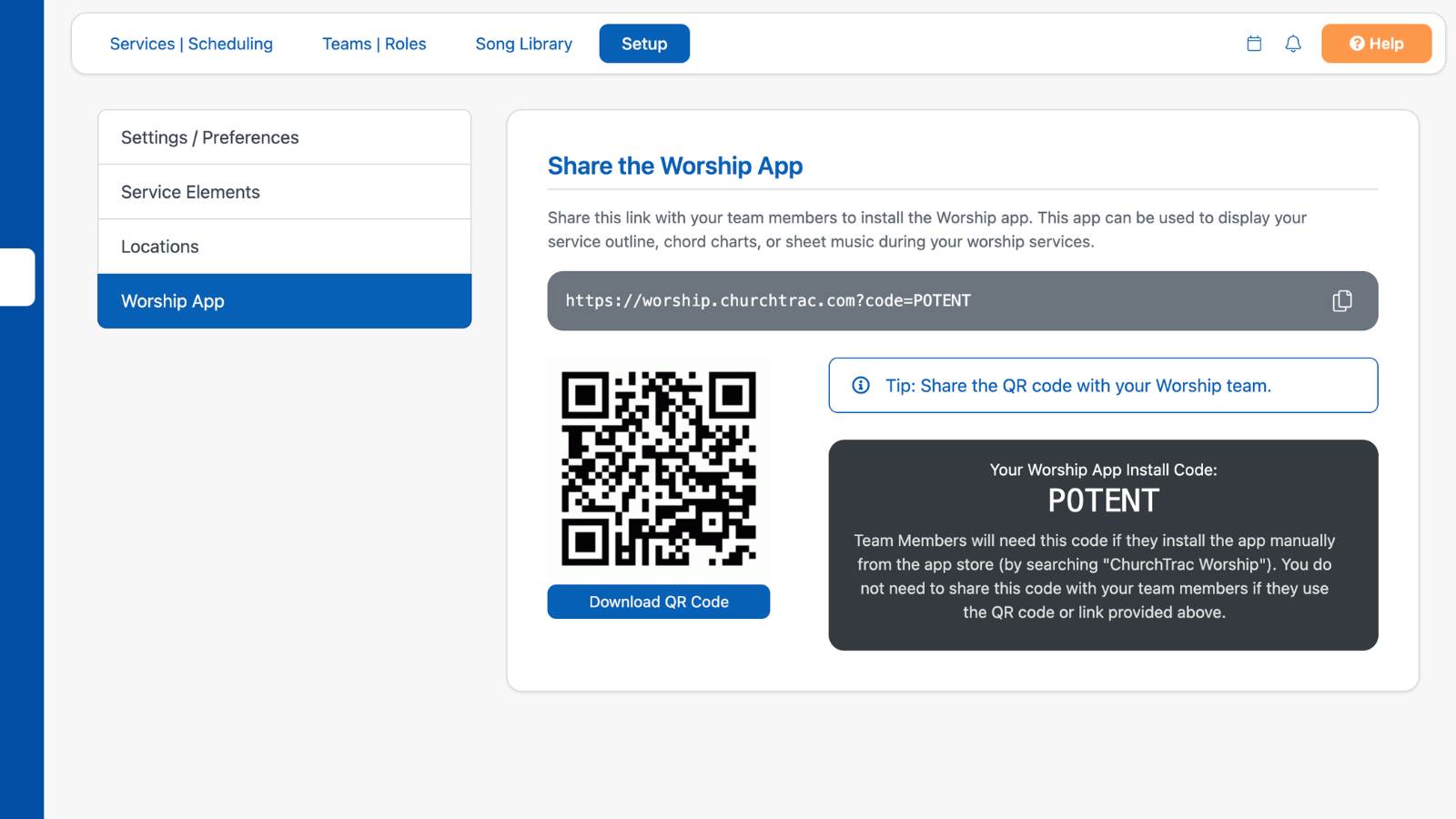
You can scan the QR code or use the URL to install the app directly, or enter your church's install code if you’re downloading from the App Store without the QR code or link.

Welcome to Worship
When you first open the ChurchTrac Worship App, you’ll see the Welcome to Worship homepage. This page serves as a quick tutorial to help you get familiar with the app and its main features.
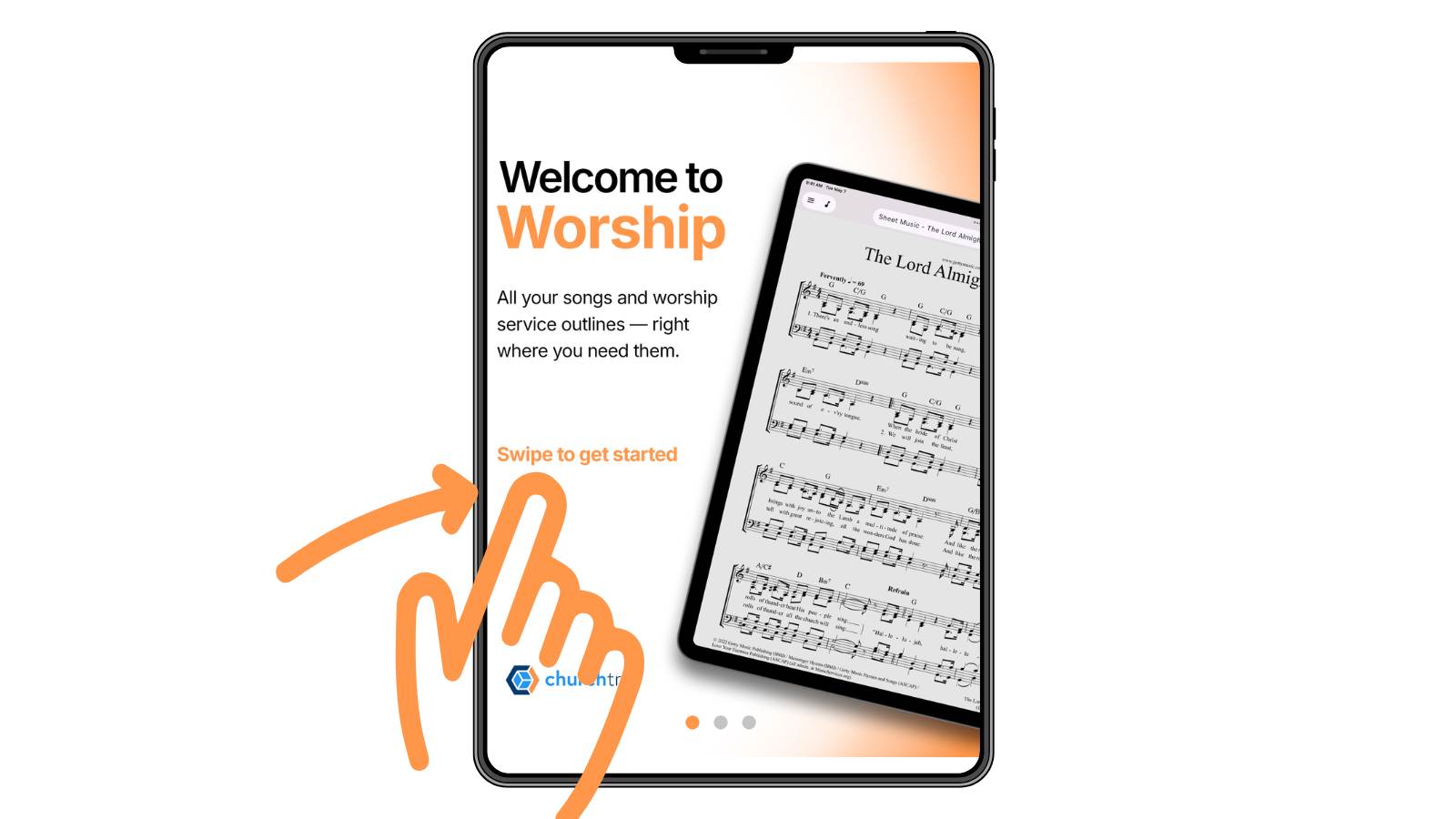
From this page, you can quickly access any section of the app and start managing your worship content right away.
The ChurchTrac Worship App is organized around five main sections: Services, Songs, Files, Tools, and Settings.
Services
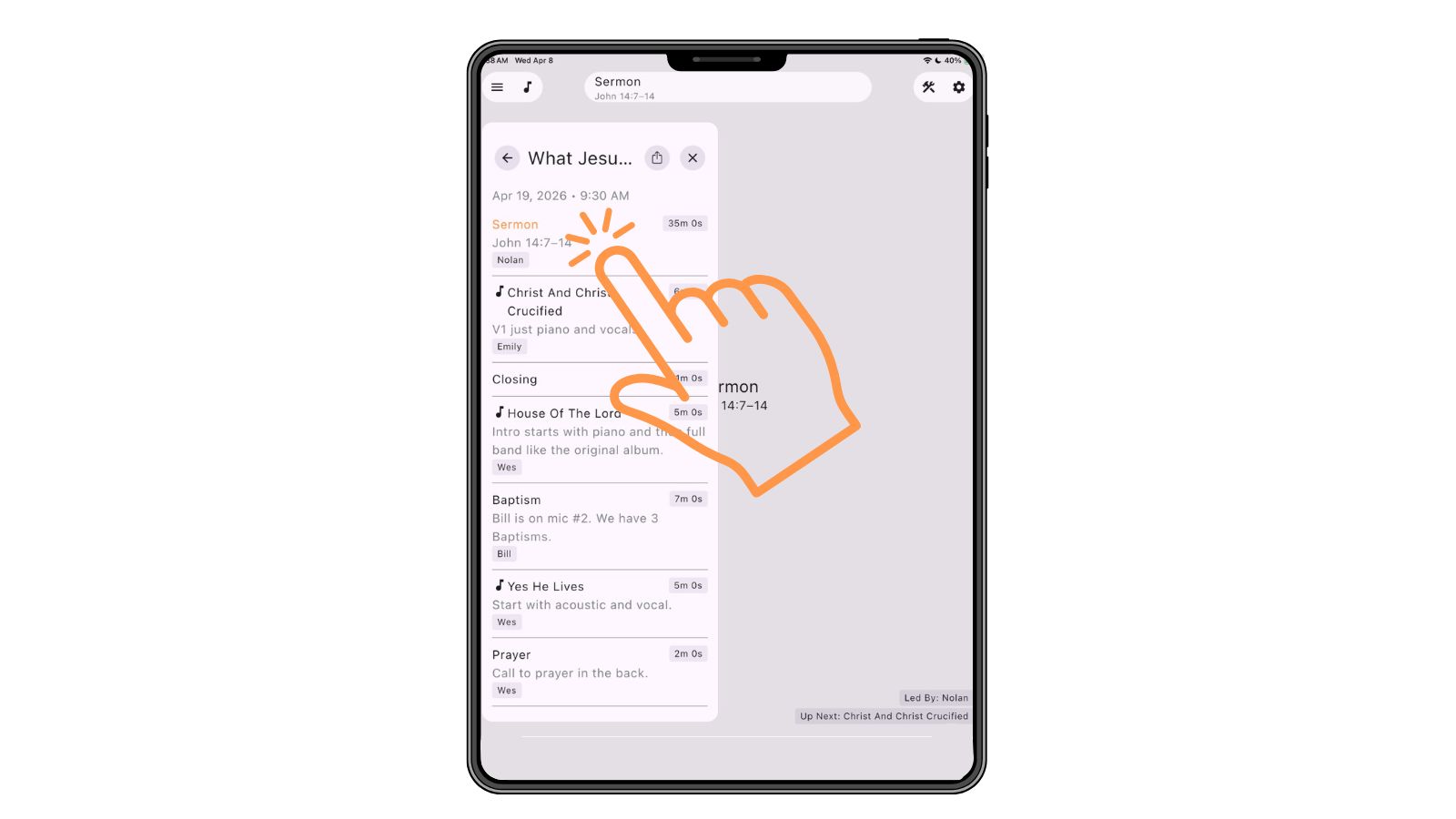
The Services section is where your worship team can view and interact with scheduled service plans. Tap the services icon in the top left corner to get started!
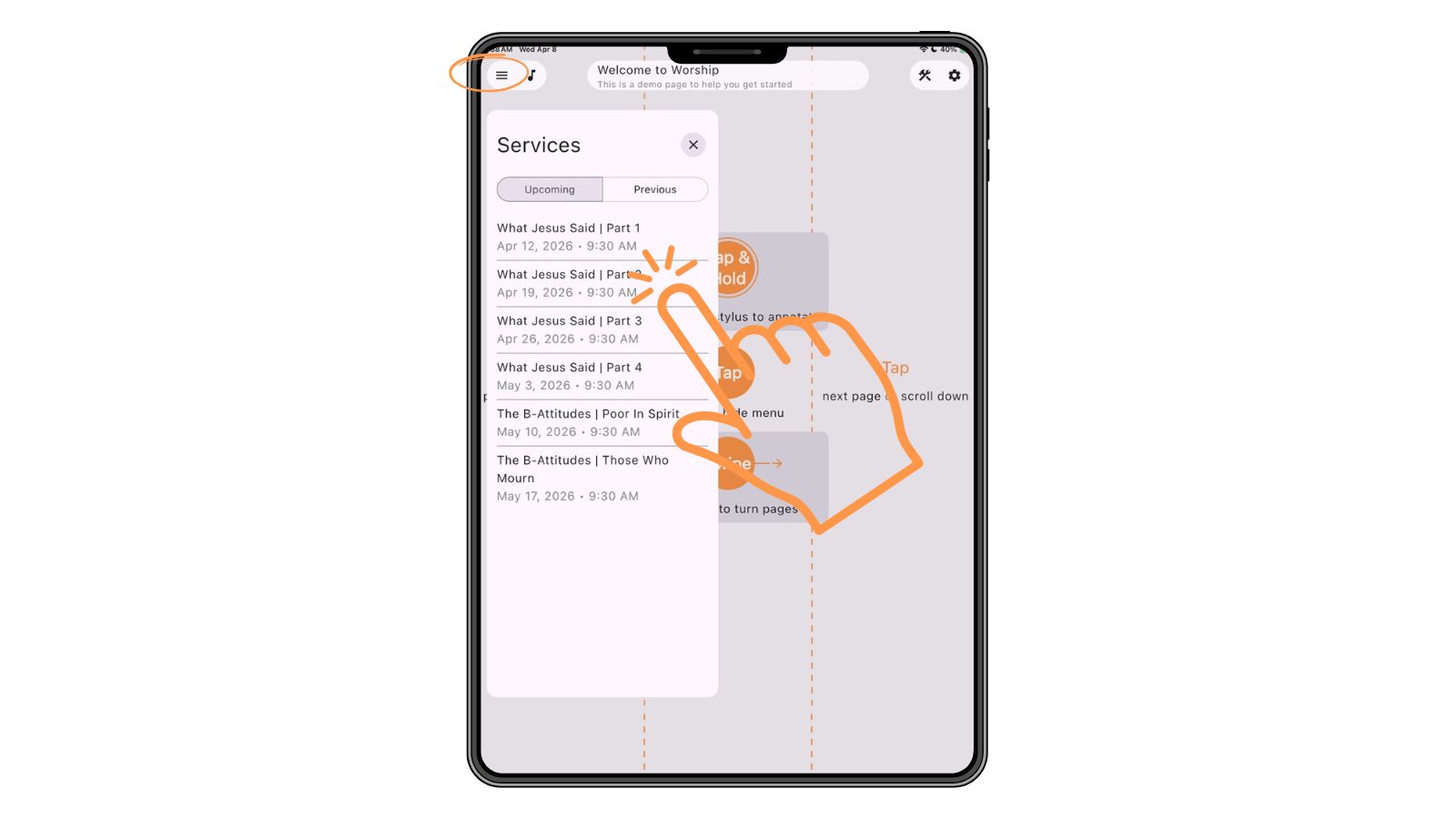
Tap on a service to open it. From here, you can quickly view your service outline and access chord charts, lyrics, and any attached content needed for rehearsal or live services.
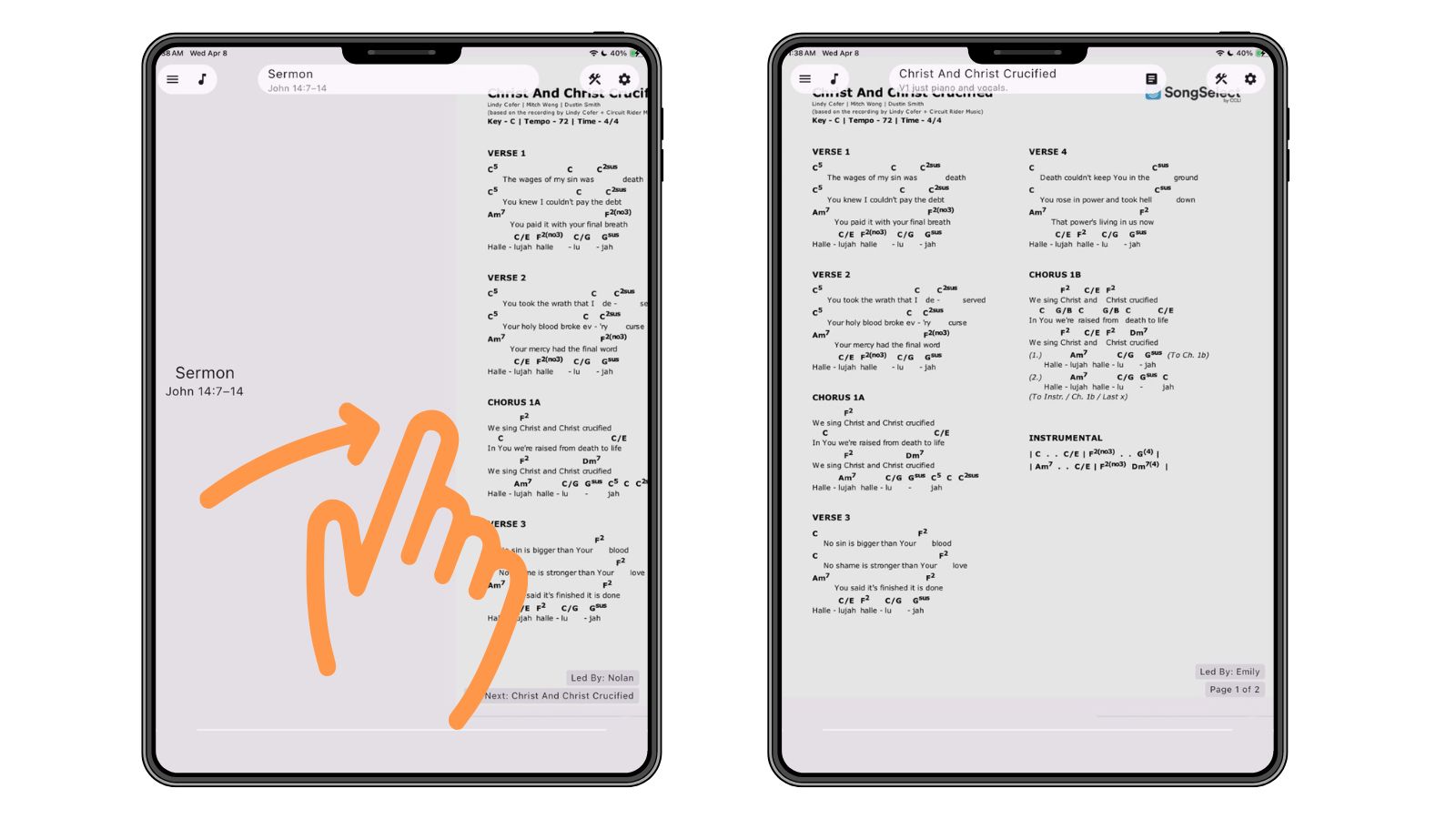
You can easily move between songs and service elements by swiping left or right. This allows you to follow along without needing to return to the main service list.
Songs
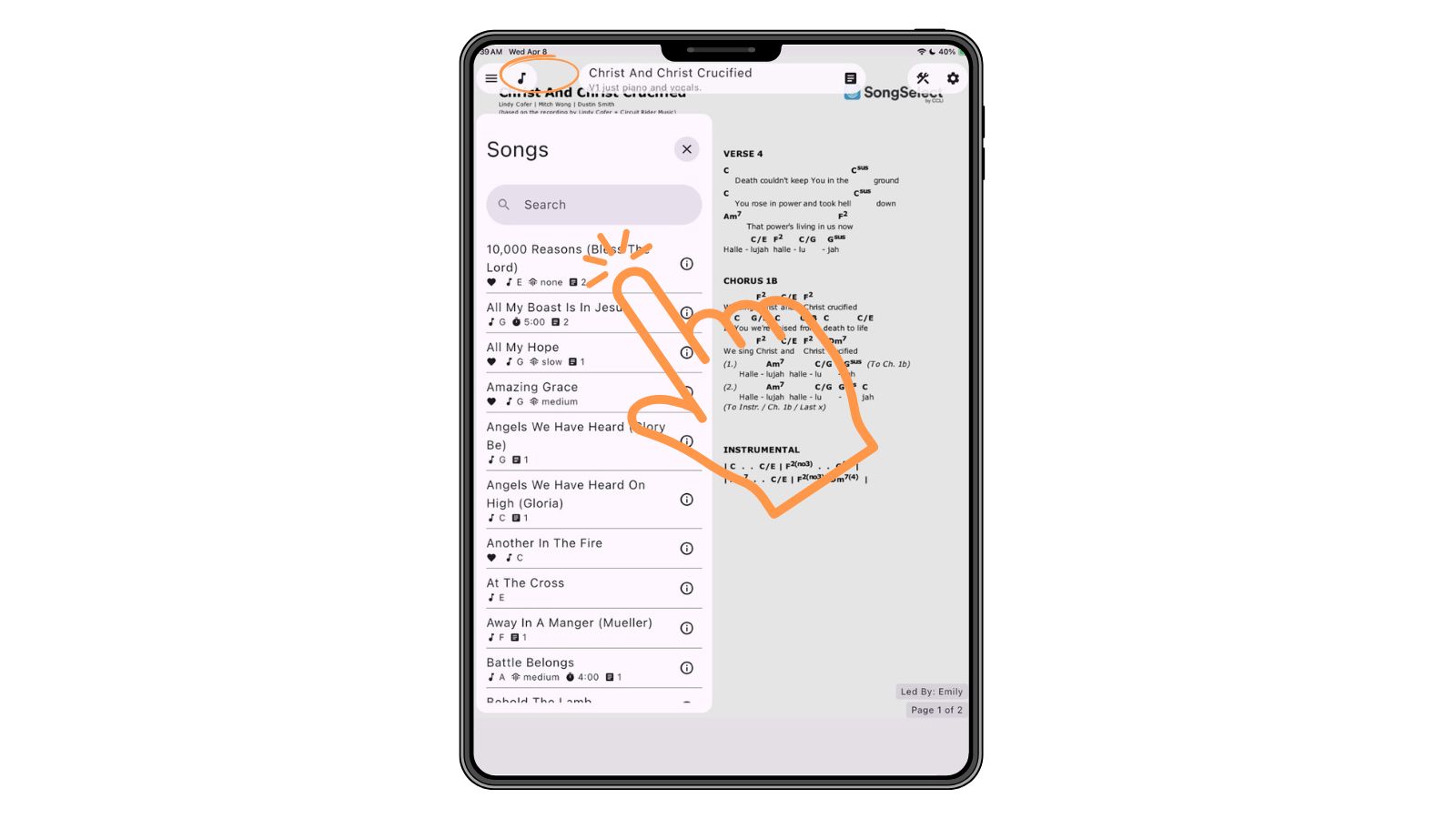
The Songs section contains your church’s full song library. Tap the music note icon in the top left corner to view your songs. You can scroll through your songs or use search to quickly find what you need. Tap a song to open it and view its details.
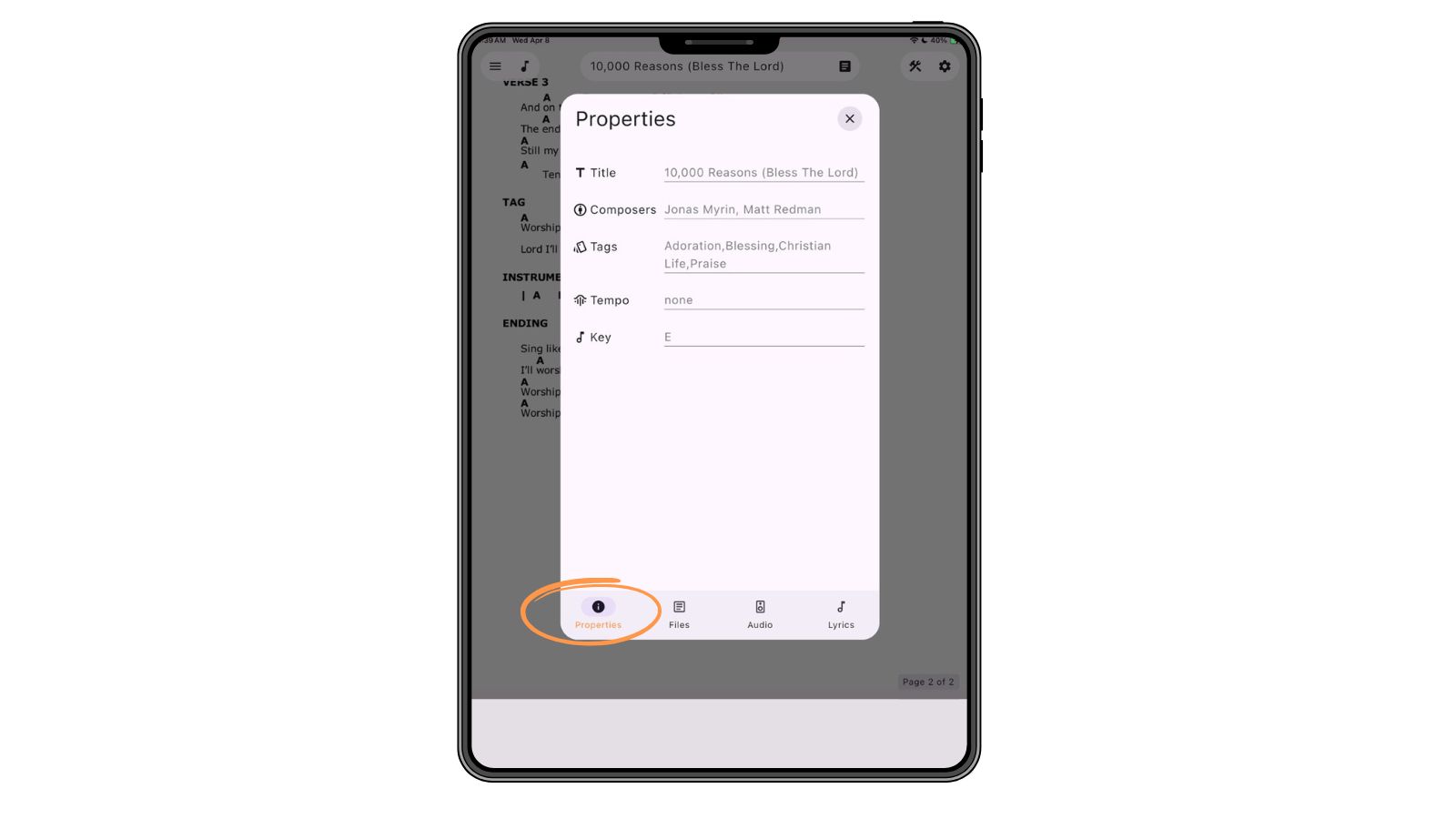
Select the song title to view its properties.
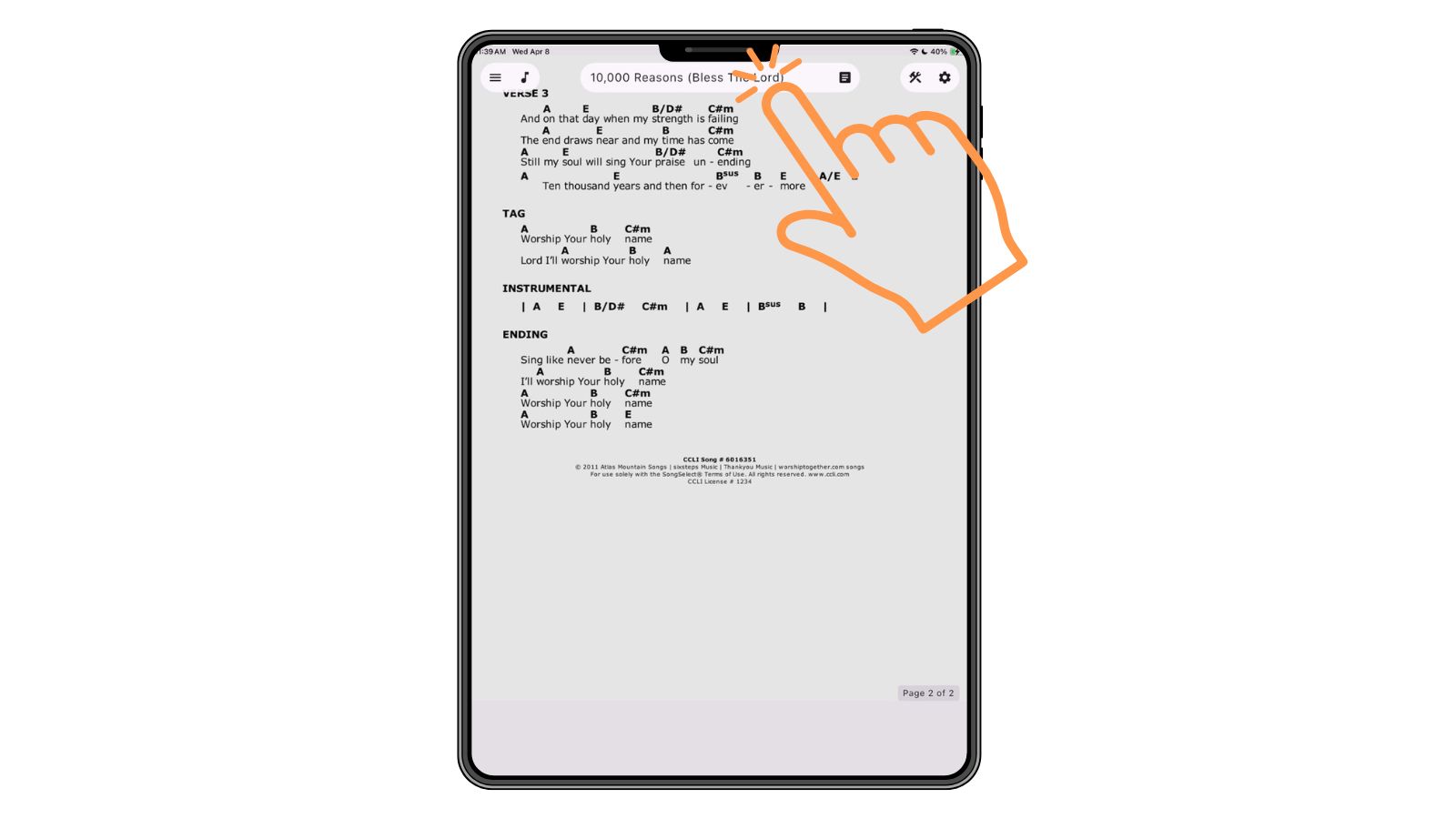
From here, you can view the title, composers, tags, tempo, and key.
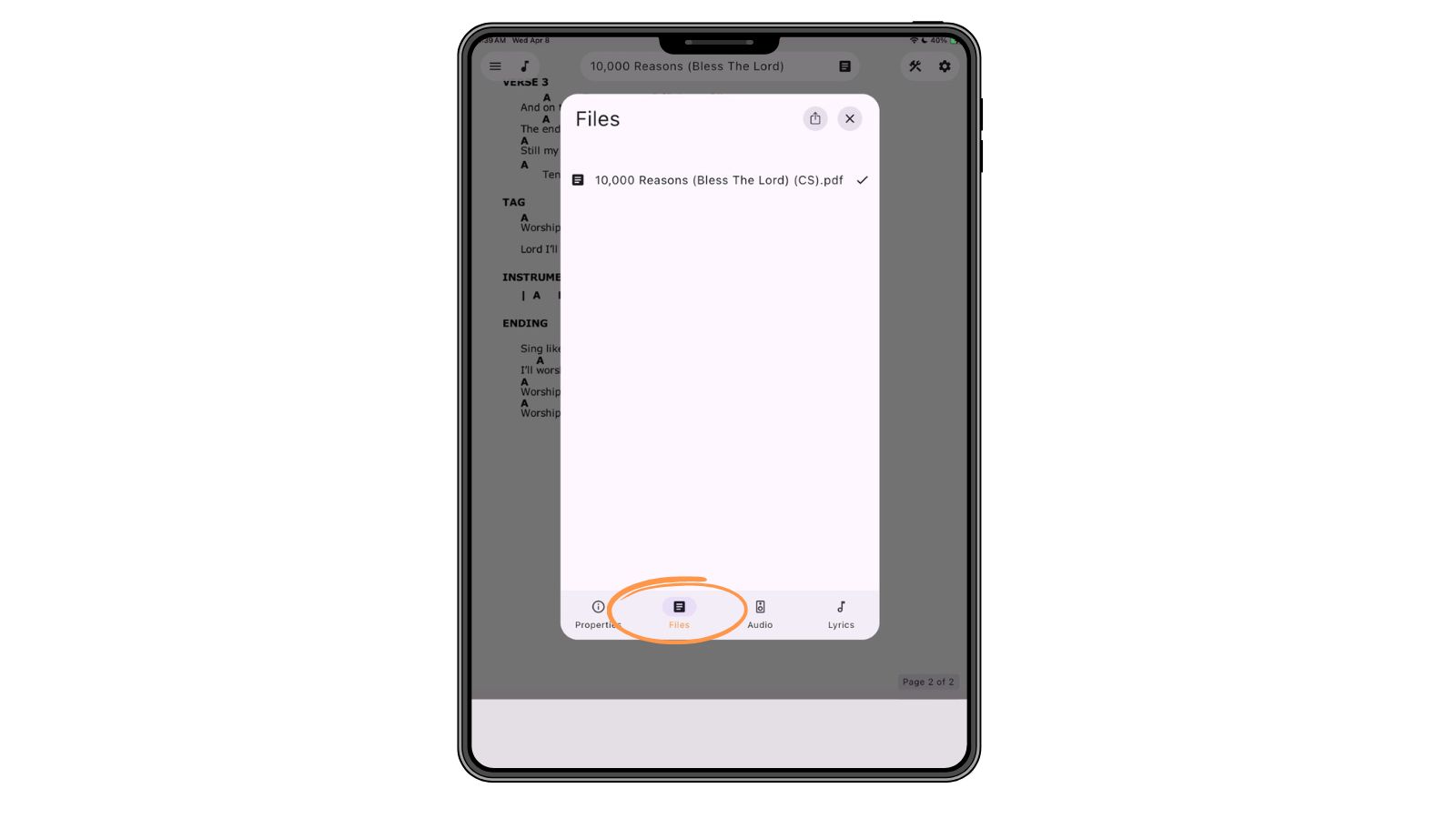
Access associated files such as chord charts and other PDFs...
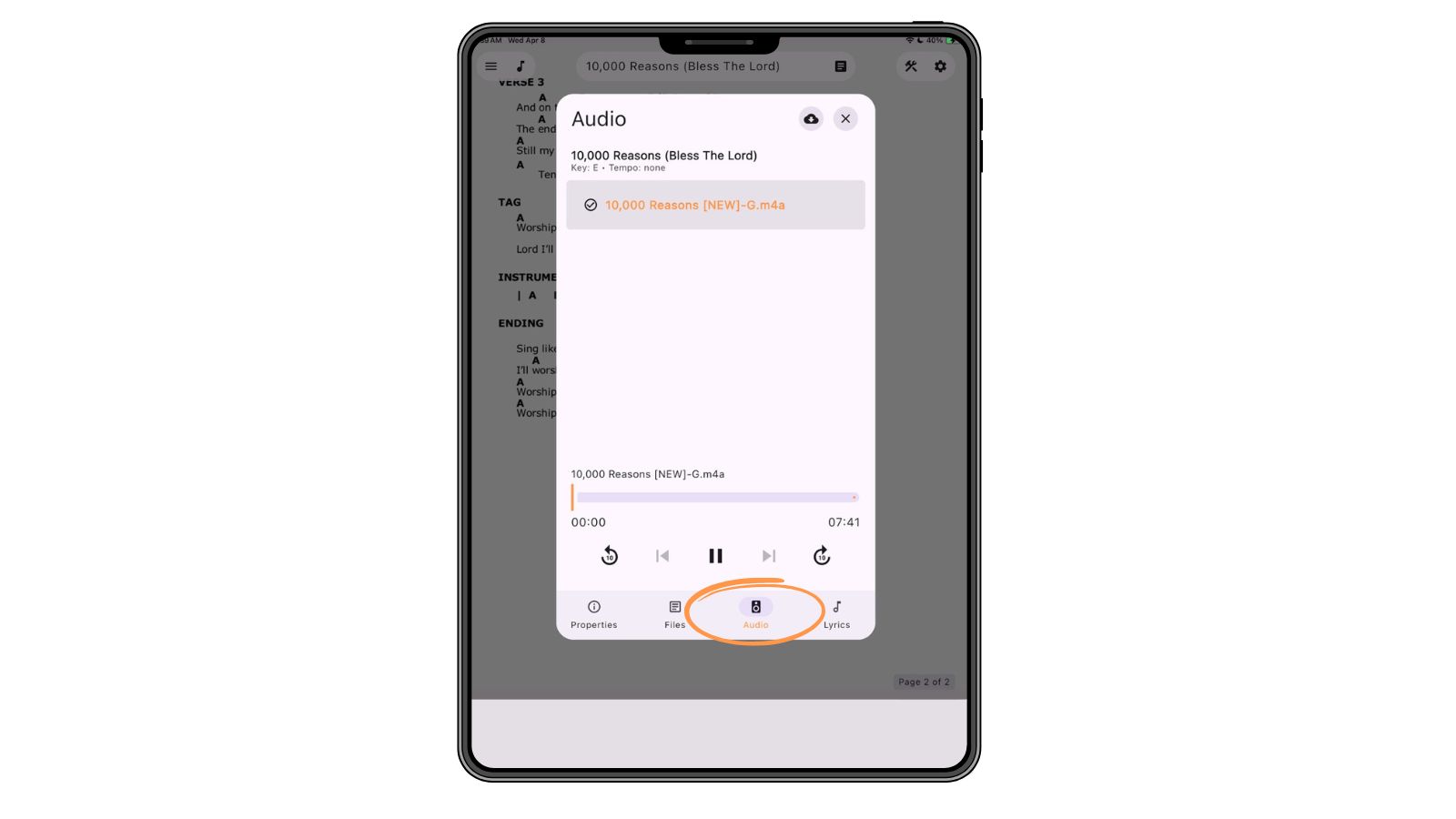
Listen to audio tracks...
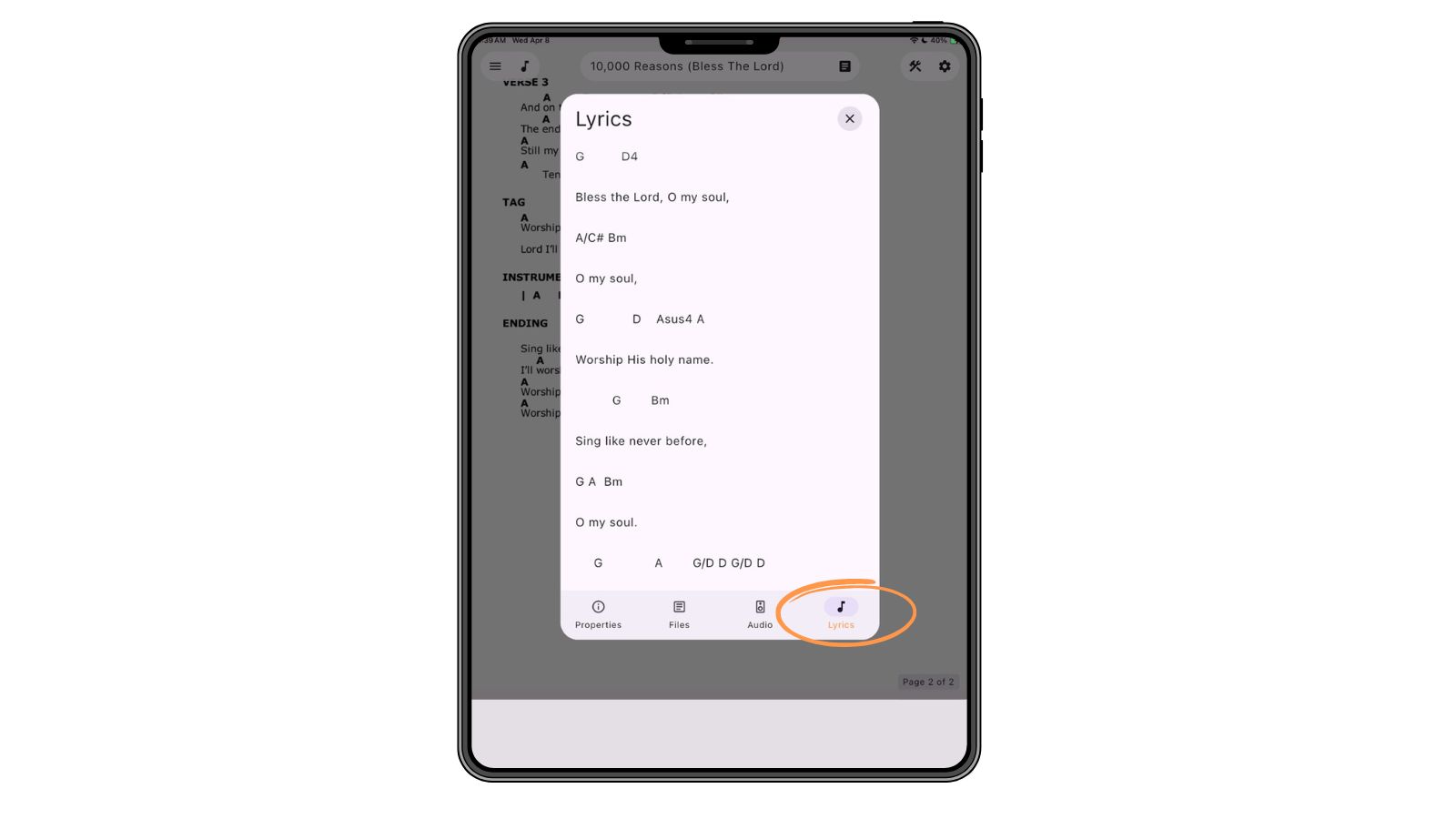
View lyrics...
Everything you need to manage your next setlist!
Files
The Files section gives you access to all uploaded media and documents. Tap the file icon next to a song title to open and view its associated files.
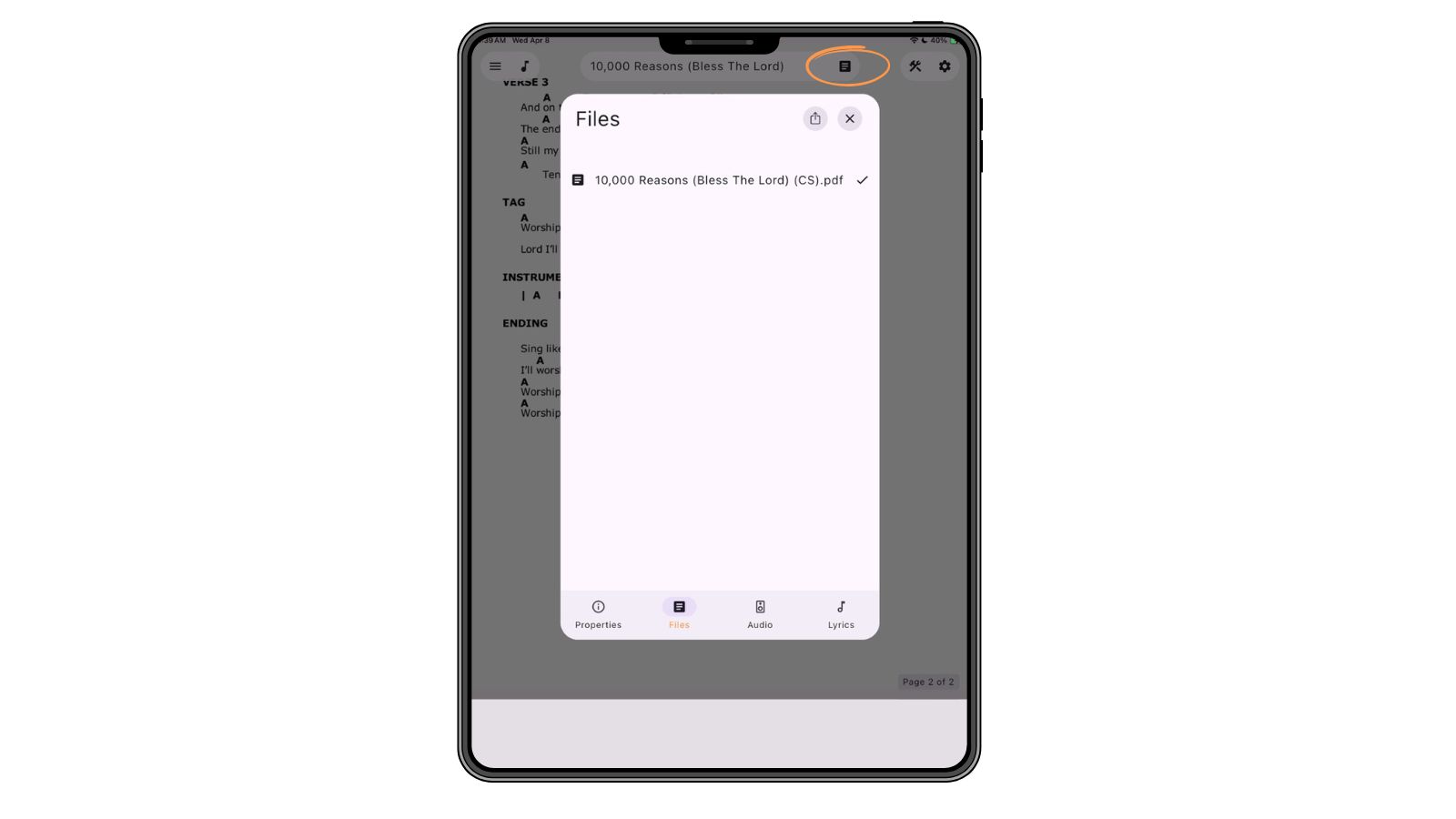
Files are organized so you can quickly find and use the content connected to your songs or services.
Tools
The Tools section includes helpful features designed to support your worship preparation and performance. Tap the tool icon in the top right corner to access the audio player, annotate a sheet, or crop a page.
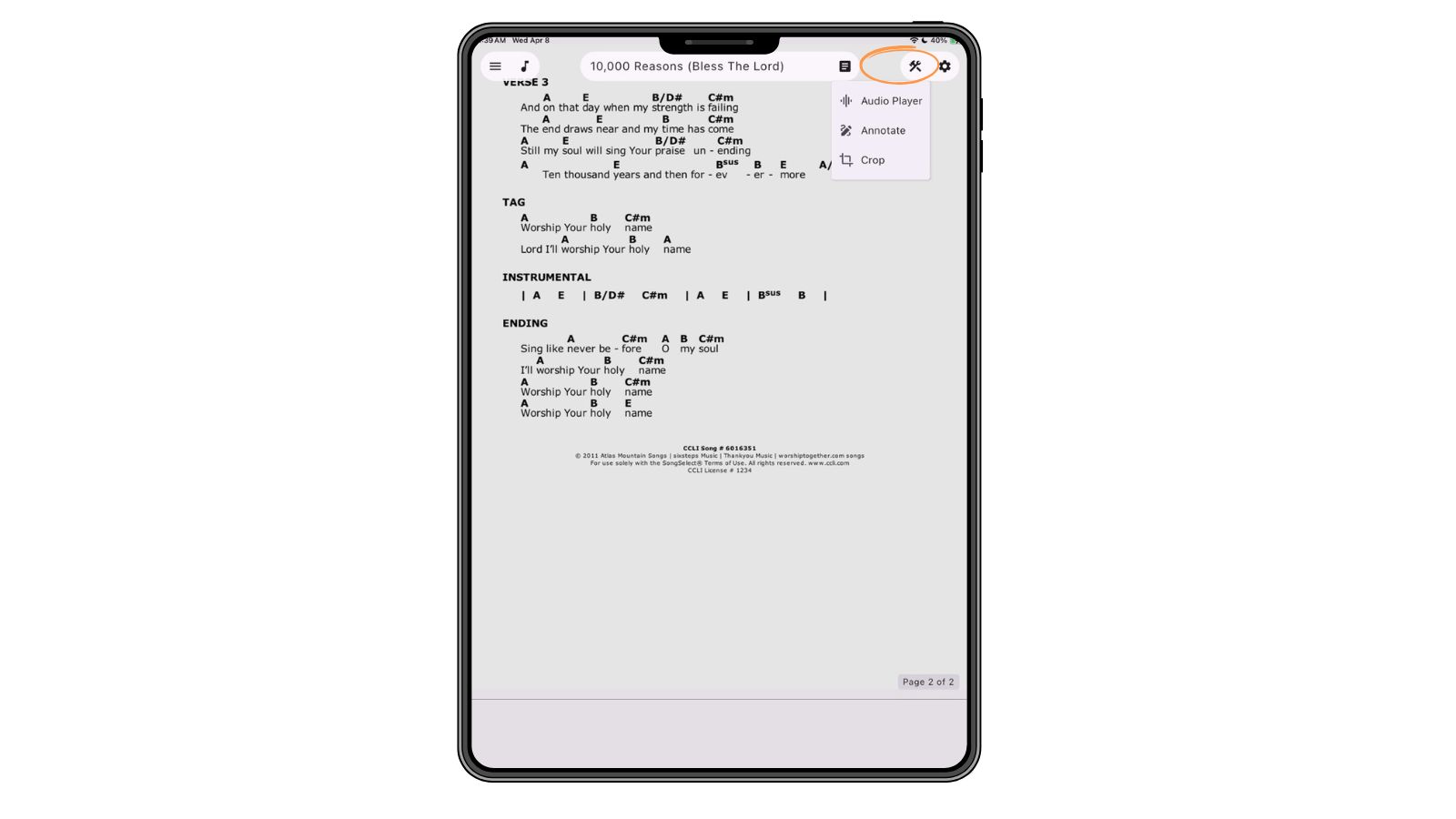
The Audio Player allows you to play rehearsal tracks or backing audio directly within the app. Just choose a song and click play!
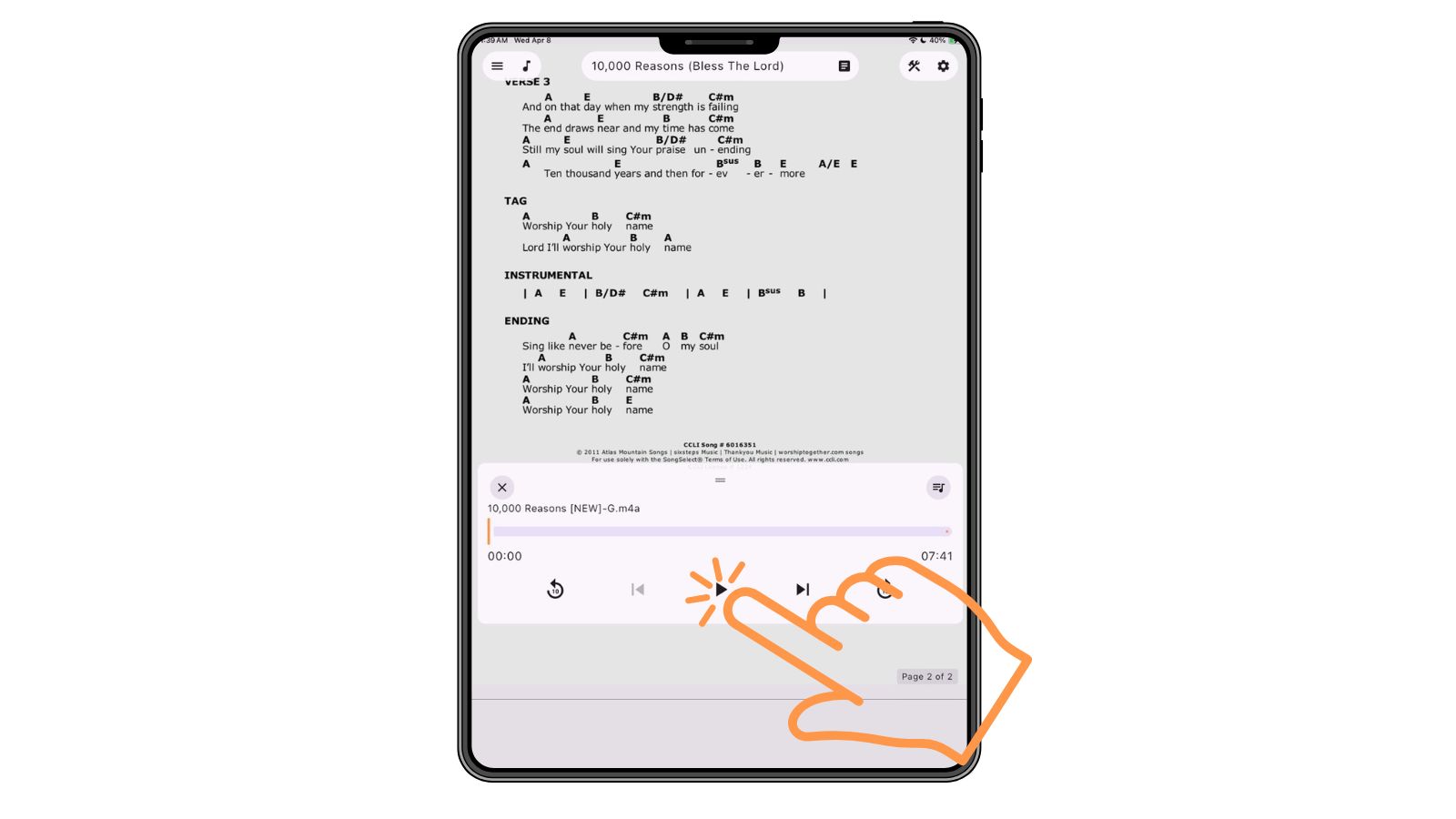
The Annotate tool lets you add notes or mark up chord charts for personal use, making it easy to customize your charts for each service (plus the occasional musical doodle!).
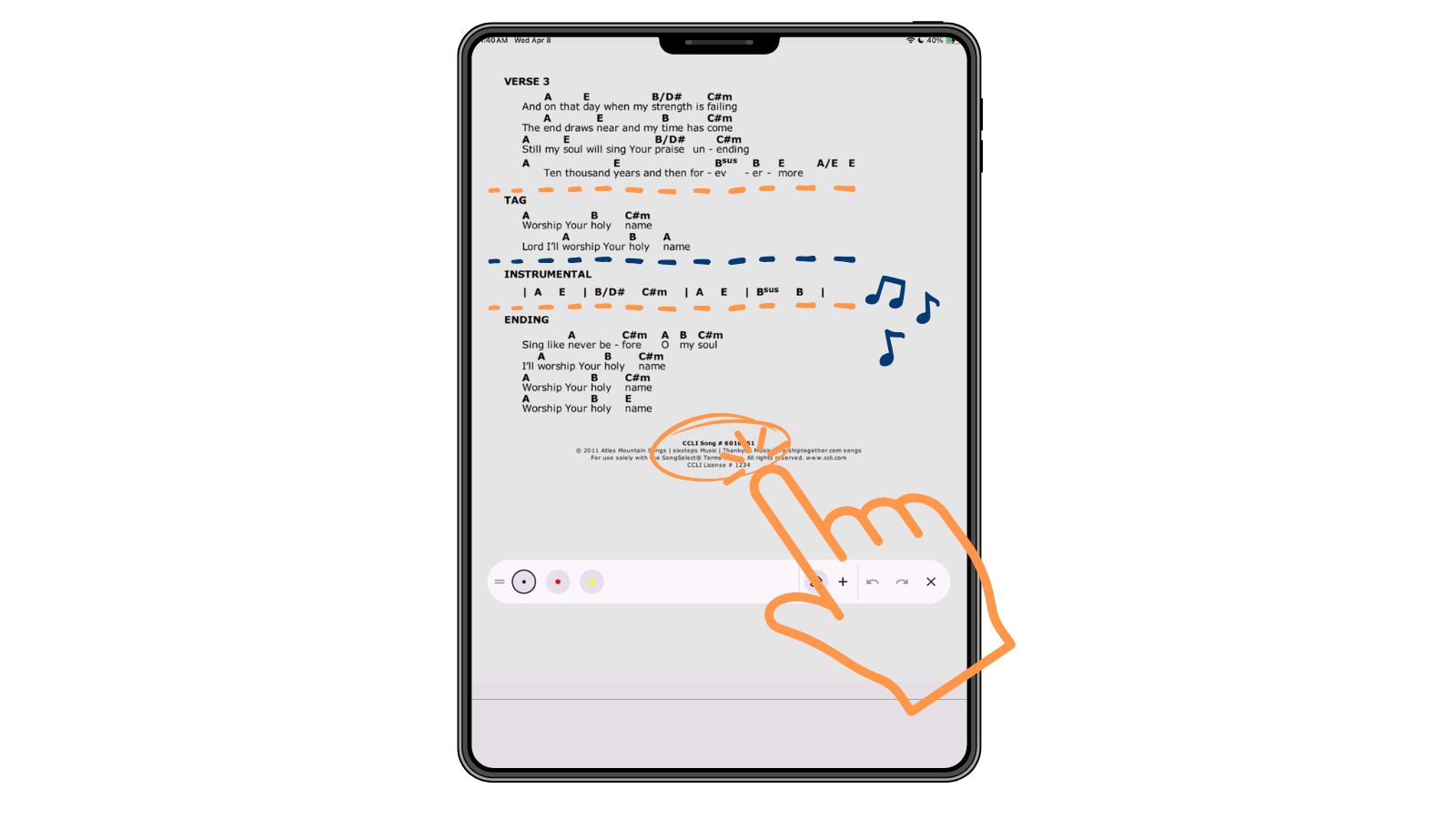
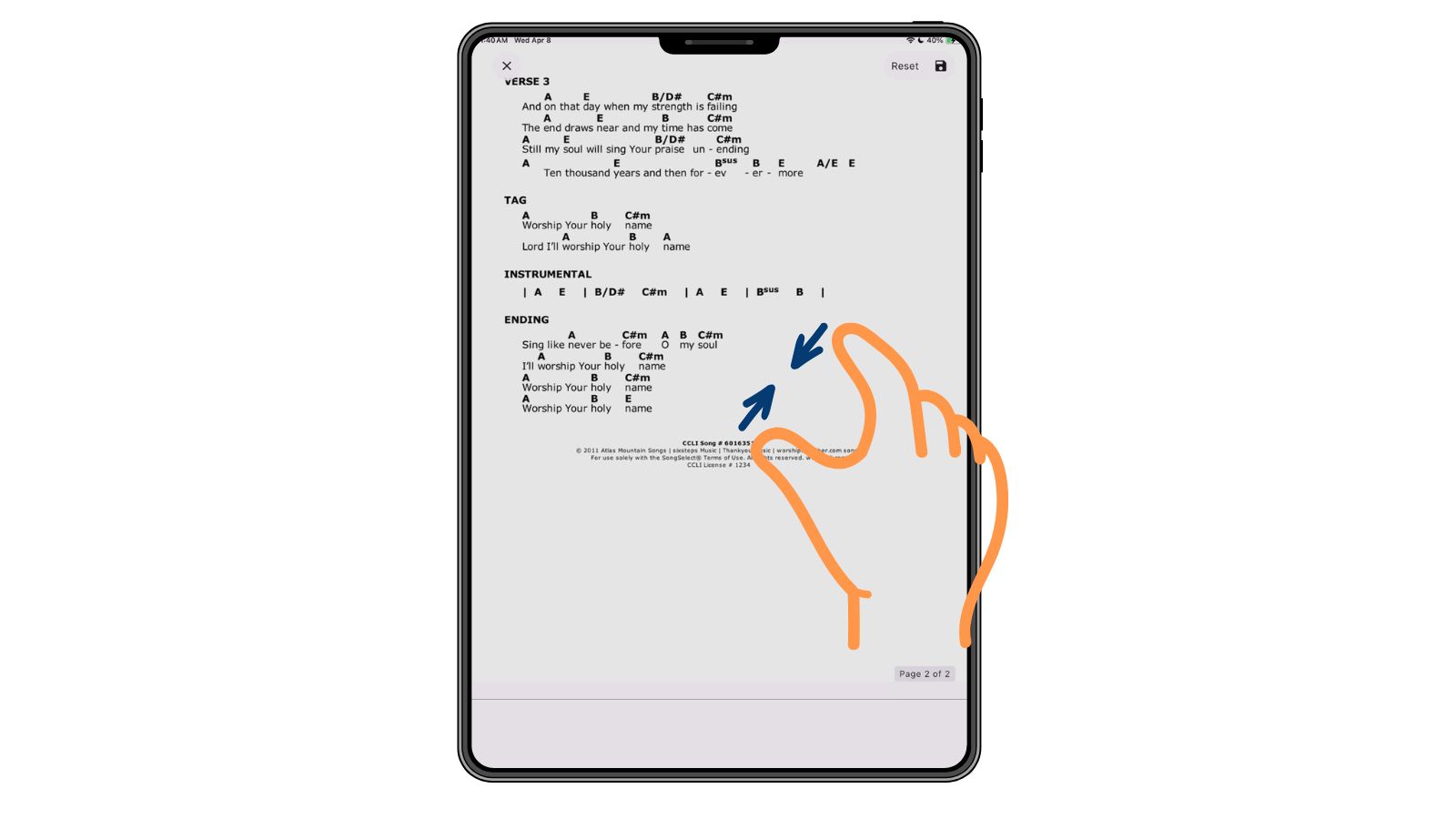
The Crop tool allows you to adjust files for better readability, helping you focus on the most important parts of a chart or document.
Settings
The Settings section lets you manage your app experience and account preferences. Tap the settings icon in the top right corner to access and adjust your options.
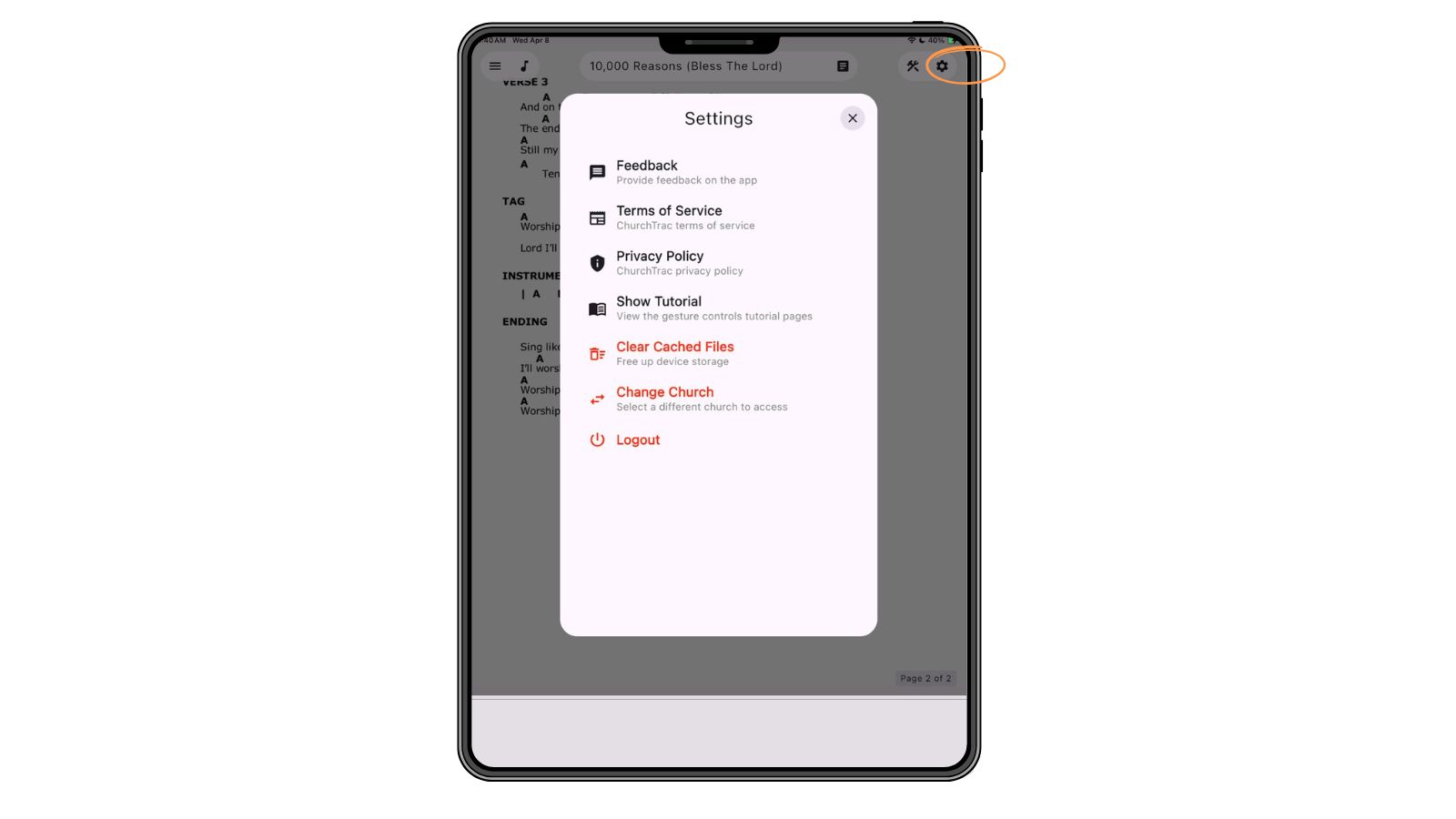
From here, you can send feedback, view the terms of service and privacy policy, revisit the tutorial page, clear cached data, switch churches, or log out of the app.
Worship App FAQs
Your login credentials are the same ones your Church Connect account uses. If you already have a Church Connect member account, you can use that to log in to the Worship App.
In your ChurchTrac account, go to the Worship Scheduling screen. Under Setup → Share the Worship App, you will find your QR code/URL, and install code.
You can scan the QR code/URL to install the app directly, or use your install code if you are downloading directly from the App Store.