Entering Attendance With Quick Entry
This mode allows you to quickly enter attendance for any tag assigned on any given attendance date. It is best used in a situation where a single administrator is entering attendance. This can be used for small group attendance tracking or to track church attendance for a worship service.
Entering Attendance With Quick Entry
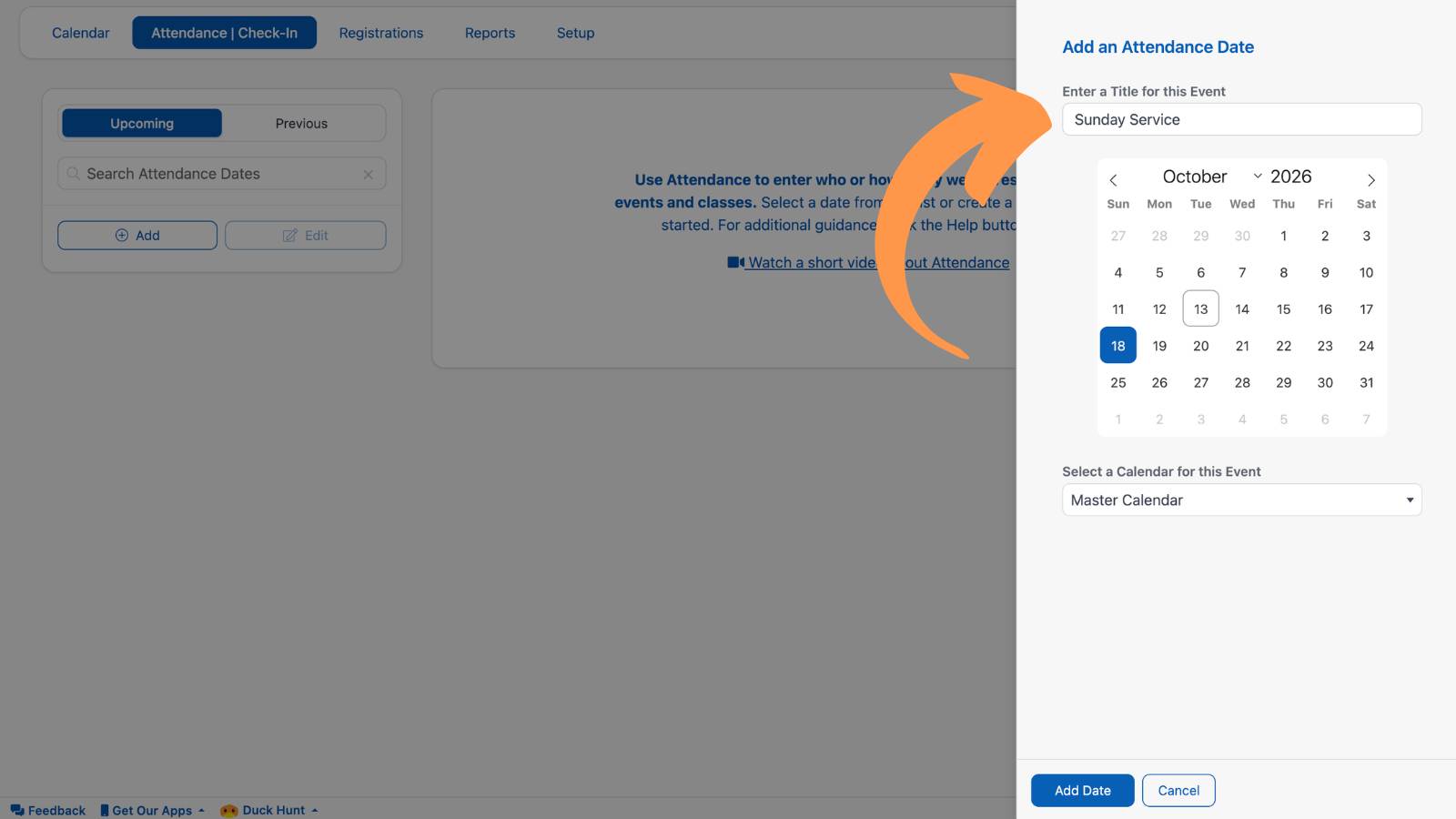
Navigate to the "Attendance & Check-in" tab on the Events/Attendance Screen and select or add a new date to enter attendance.
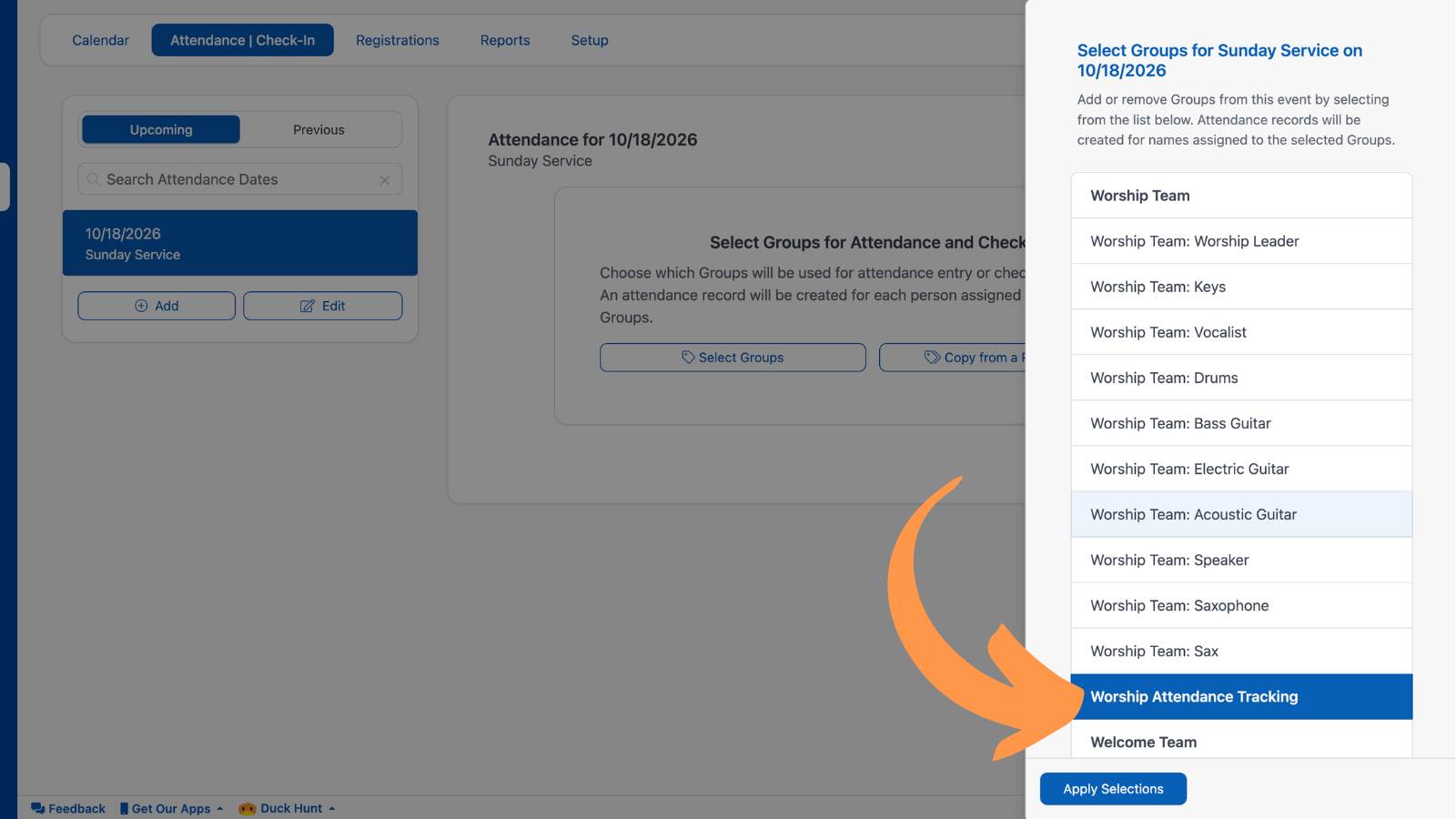
After you choose your date, select the Attendance Groups(s) that you would like to take attendance for.
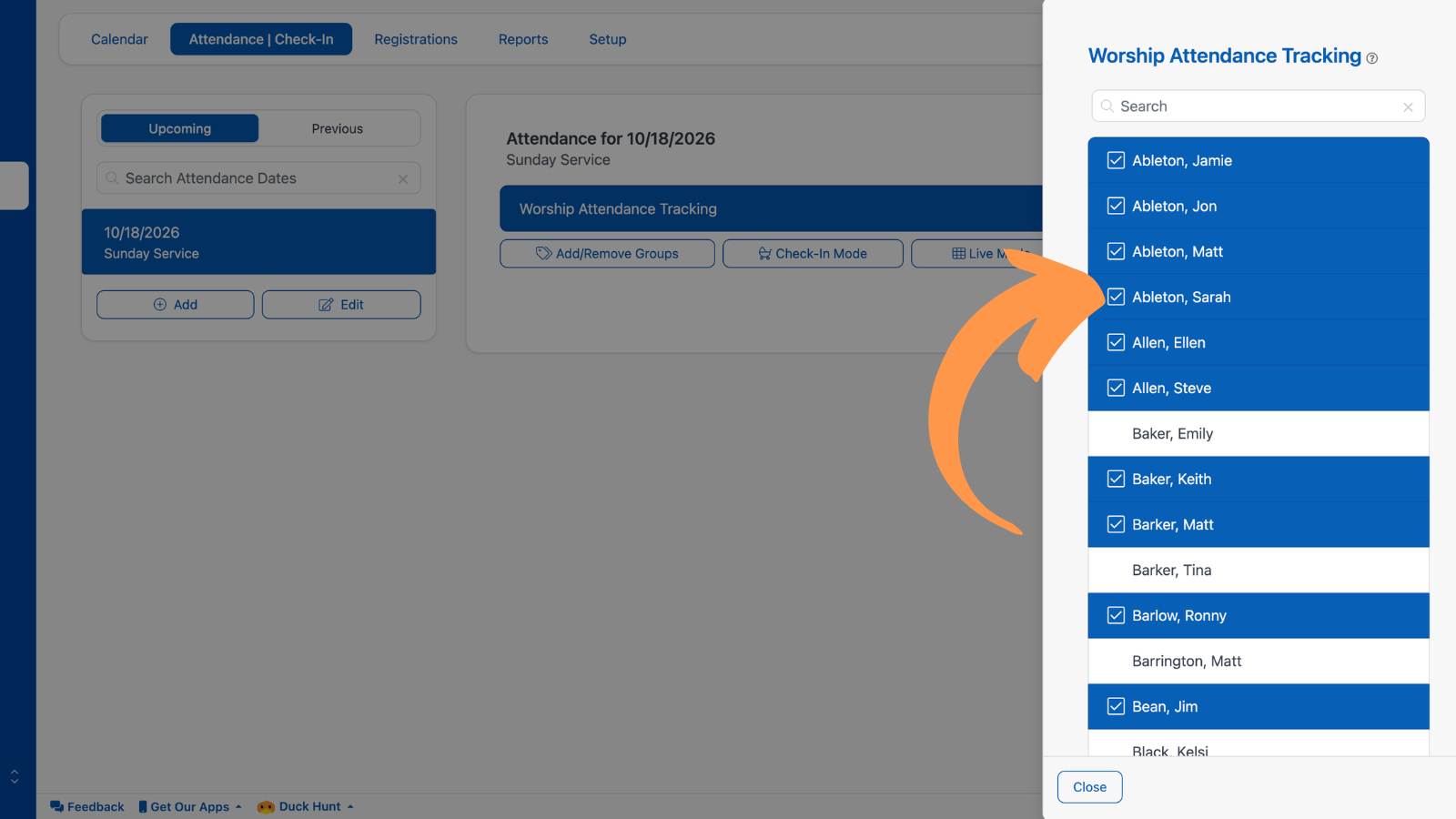
Select a name from the list below to mark that person as Present or Absent for this event. You can also do a guest count in this section as well.
Entering an Attendance Count
There are many church events that do not require keeping track of each individual. For these situations, you want to take a total headcount. This is done by creating a Group with no people assigned to it. Learn more about Entering an Attendance Count ›
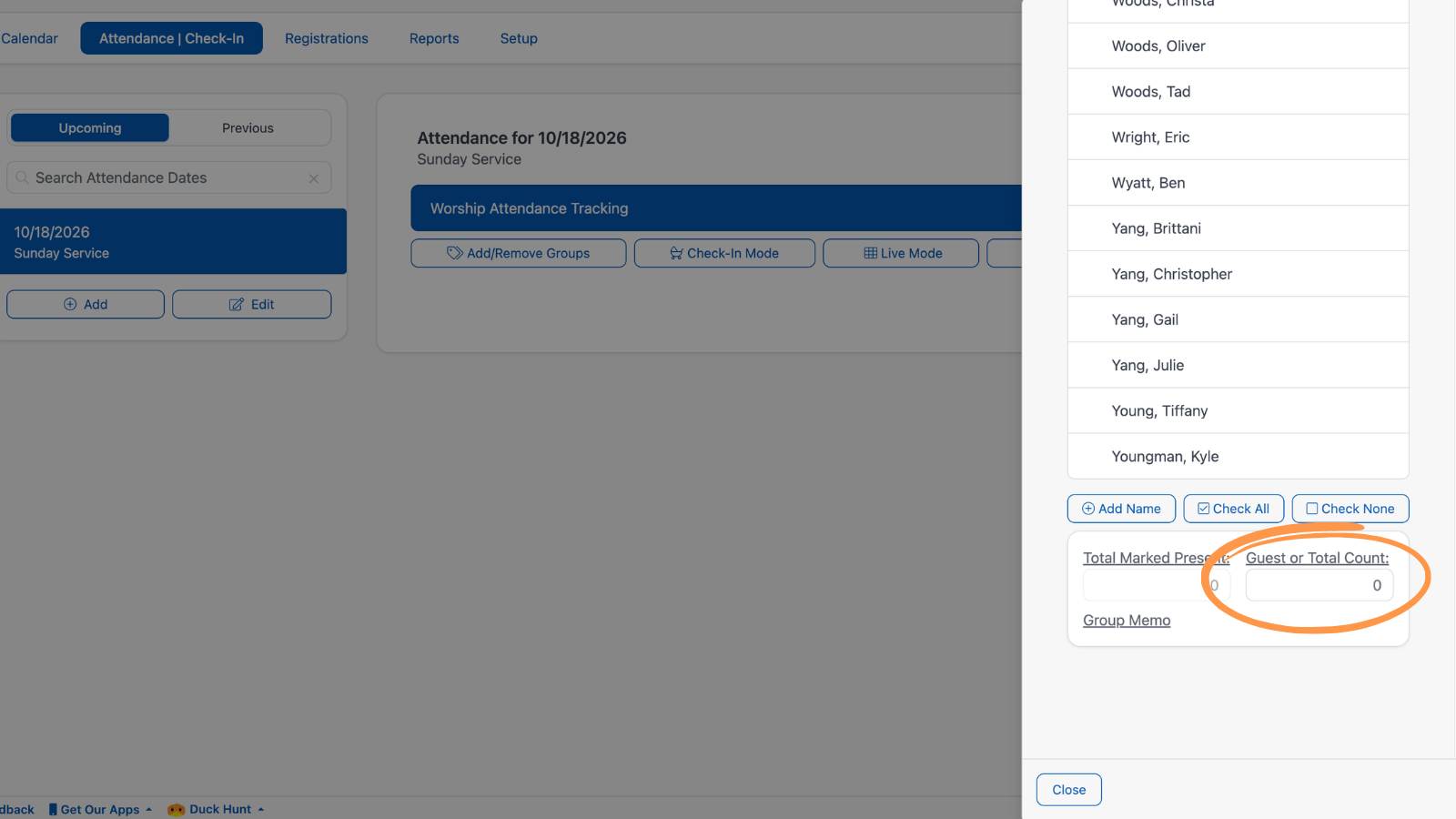
Adding a New Name
There are two options available to add guests or new member names to the Attendance Screen.
Add a Guest or New Member Already on The People Screen
Select the "Add Name" button at the bottom of the name list.
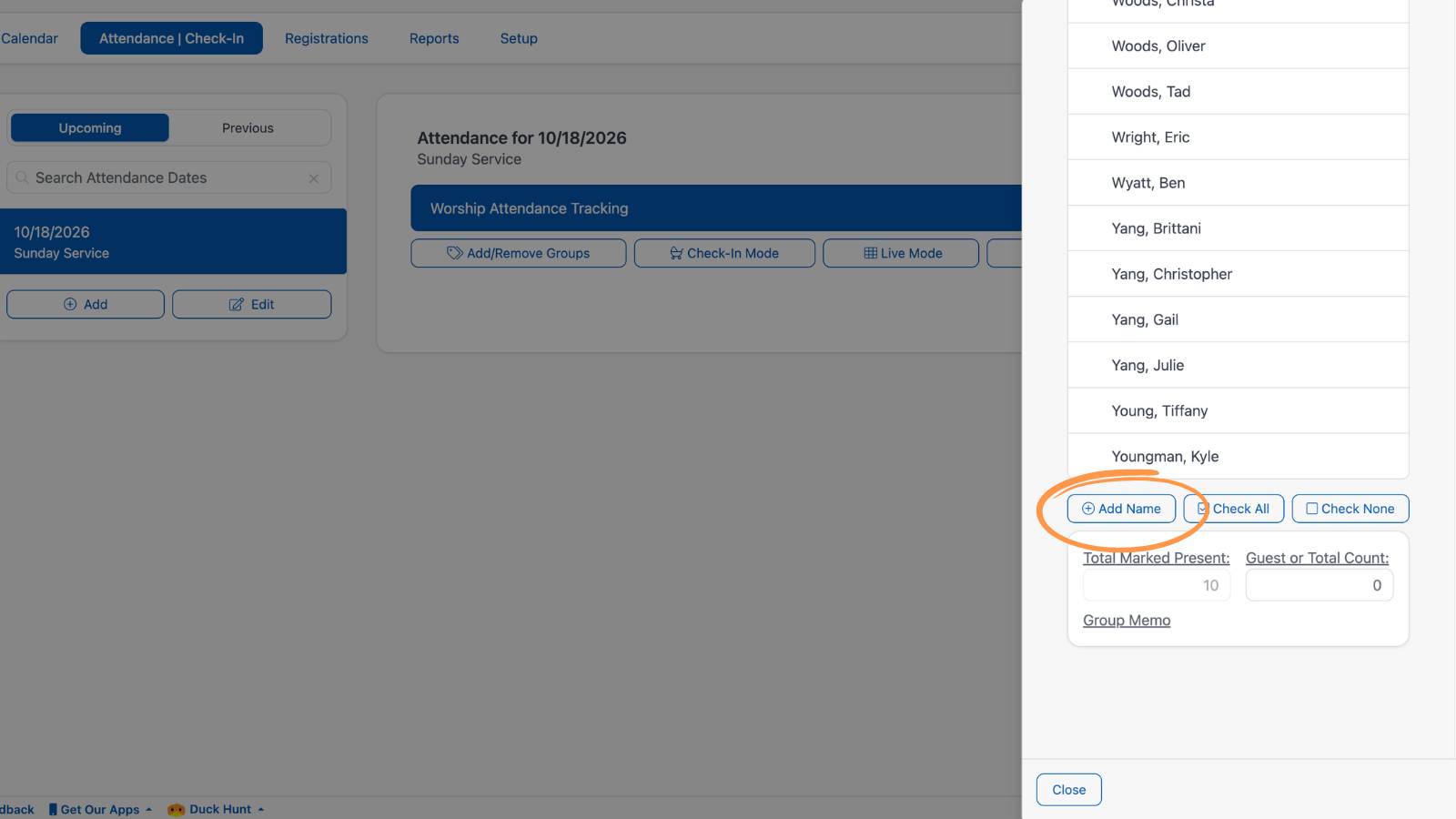
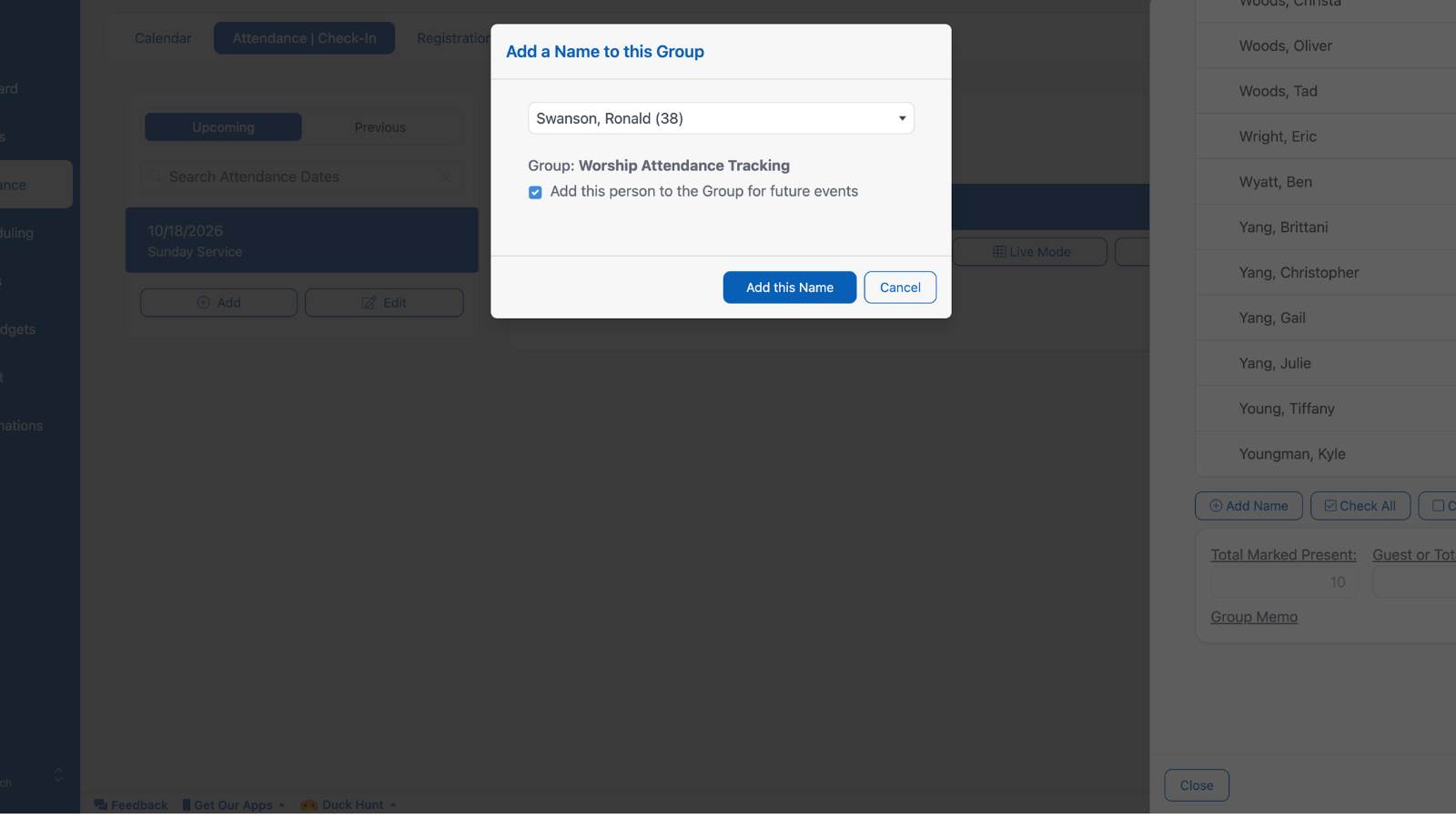
This will open a window, allowing you to select the name and choose if the person will be added to the roll permanently or just for that particular date. The name will then appear in the attendance entry area and be marked present.
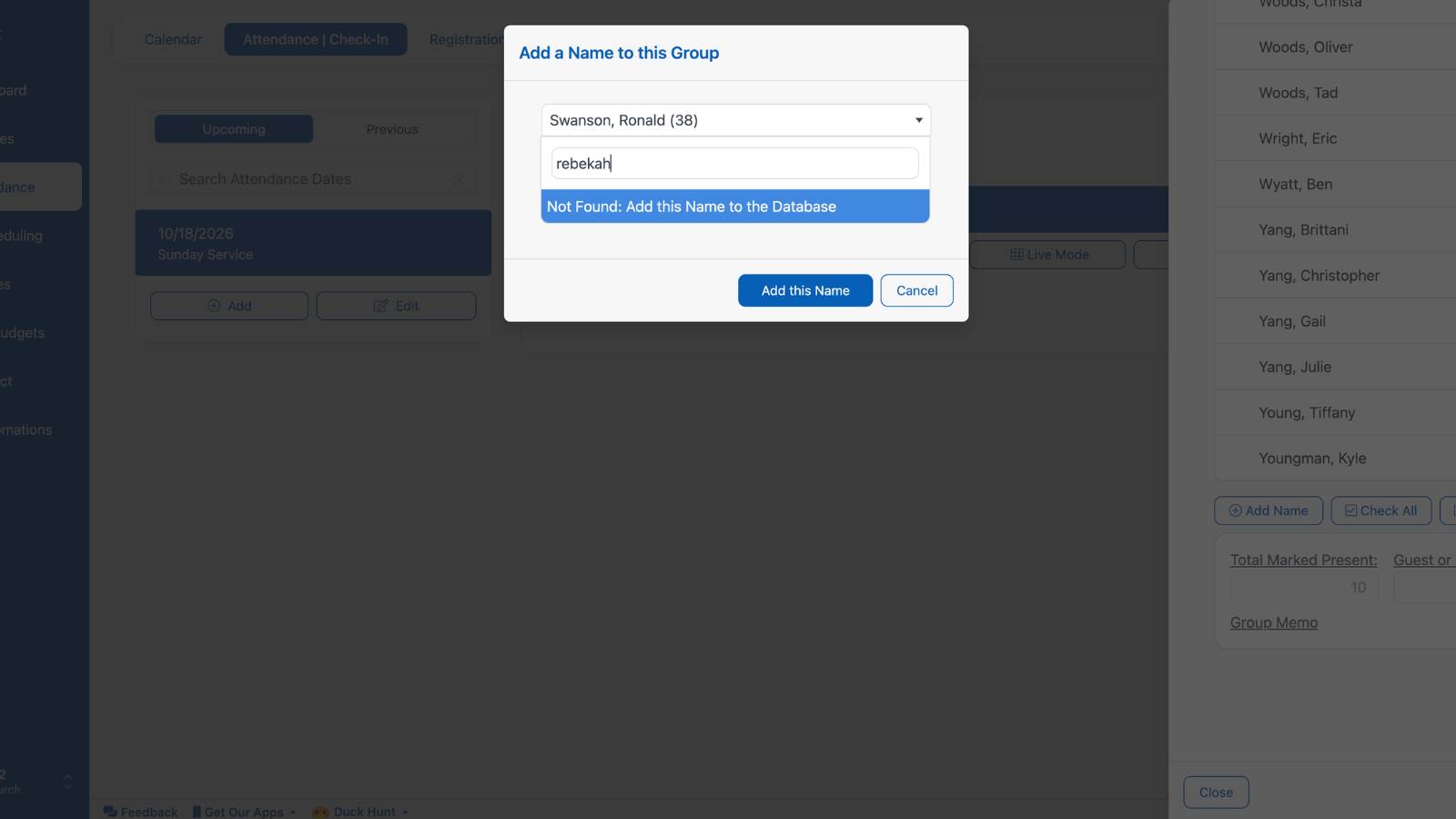
Add a Guest or New Member Not on The People Screen
Select the "Add Name" button at the bottom of the name list.
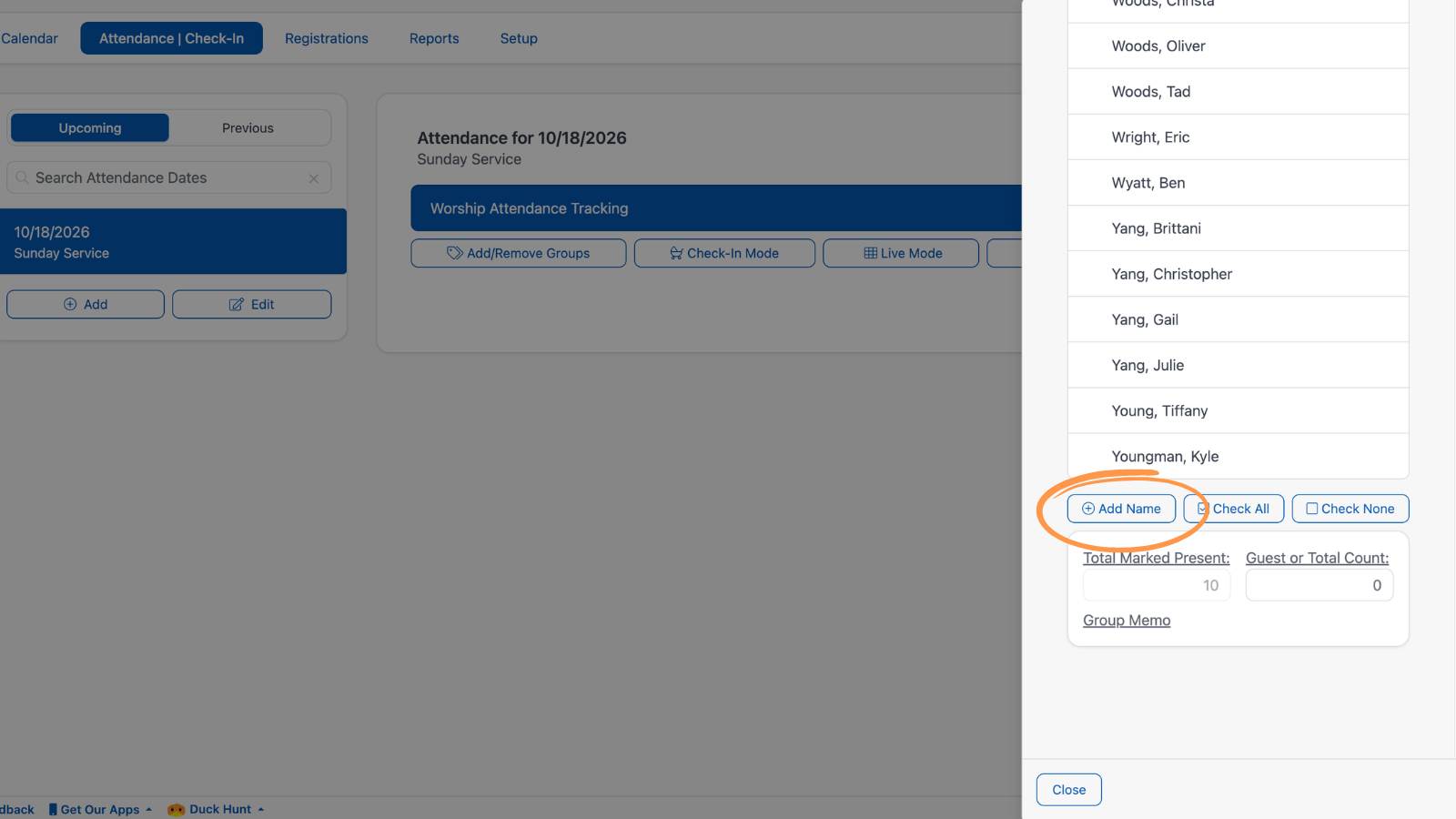
Begin typing their name in the "Name to Add" field and it will prompt you to add it to the database.