How to Create a Contact Card for Your Church

- Digital contact cards are the easiest way to get your church saved in people’s contacts.
- Saving your info helps mobile carriers know your messages aren’t spam.
- Bonus: You can make a contact card for free in Canva!
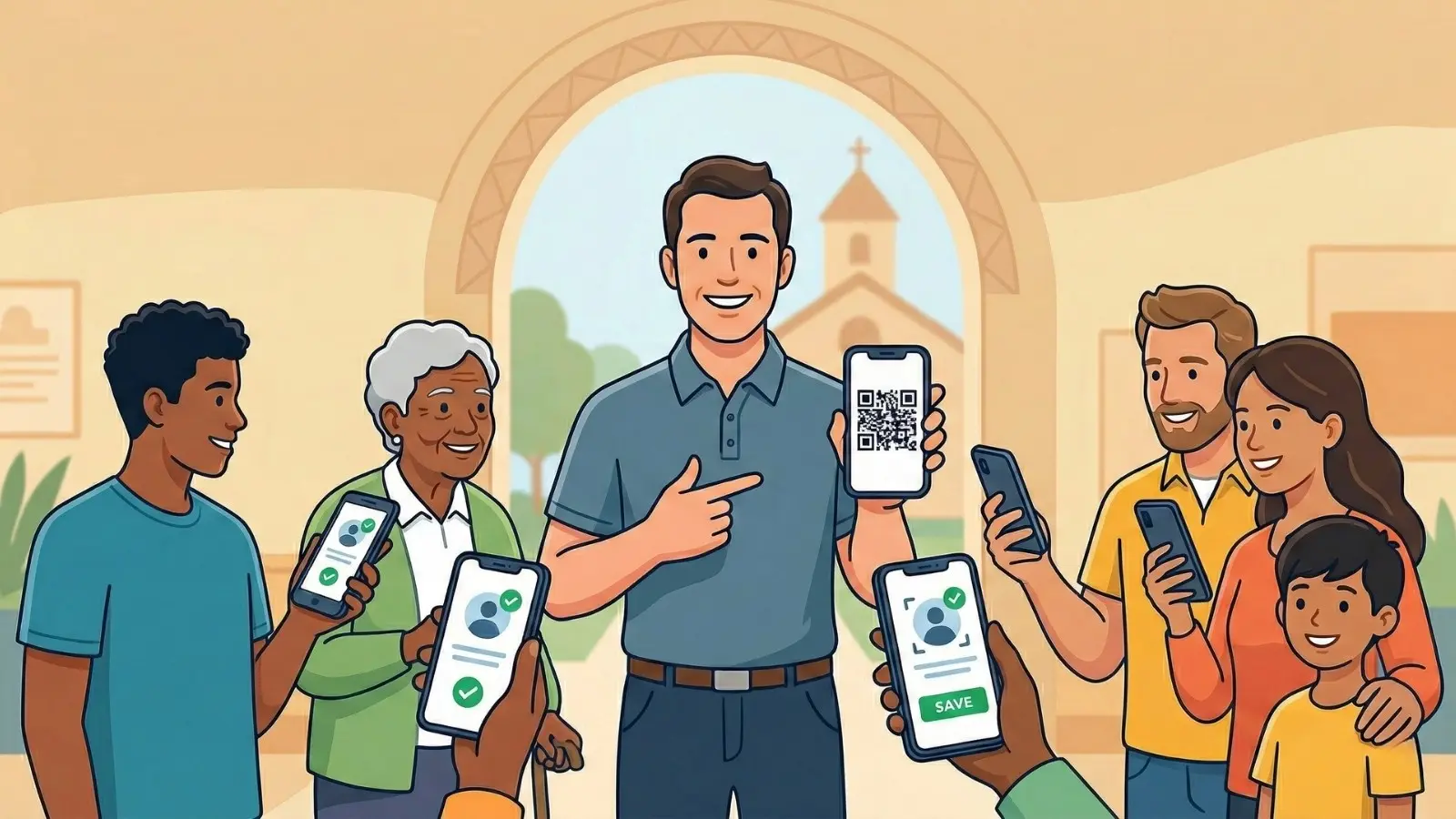
If people don’t have your church saved in their contacts, your messages might never see the light of day. A digital contact card fixes that fast!
When someone saves your info, it tells mobile carriers your messages aren't spam. In this guide, we’ll show you how to create a simple QR-code contact card that your congregation can save in seconds.
Creating a Contact Card in Canva
You can quickly create a contact card in Canva. Follow these steps to get started:
Step 1: Open Canva’s Contact QR Code Tool
Select this Contact QR Code link to open Canva. This tool allows you to create a QR code that automatically adds your church’s information to someone’s contacts when scanned.
Step 2: Create a New Digital Document
In Canva, select "Use in new design."

Then choose the "Doc (Digital)" option. This gives you a clean, simple layout that’s easy to share digitally or print.

Step 3: Enter Your Church Information
On the left-hand panel under "Contact QR," enter the following details:
- First Name
- Last Name
- Role
- Company Name (your church’s name)

Step 4: Add Your Church’s Contact Details
Next, open "Contact details" and enter your church’s email address and phone number. Make sure this information matches exactly what you’ll use for church communications.

Step 5: Generate and Share Your QR Code
Select "Create QR Code" (just below your contact details) to generate your Contact QR Code.

Best Places to Share Your Church Contact QR Code
To get the most value from your contact card, consider sharing it:
- During announcements on screens before or after service
- In printed bulletins or connection cards
- On your church website, app, or social media
- Signage around your church (welcome center, sanctuary entrances, etc.)
The more accessible it is, the more likely people are to save it.
Sharing Your Contact Card in Church Connect
Make it easy for people to save your church’s info! Grab the share link from Canva and add the contact card to your Church Connect website (either as a button or a link) so anyone can view and save it with just one click.
You can also feature your contact card on your Church Connect app using a Link Card. It shows up right on the app home screen for your members to see.
These simple steps let people save your church’s information in seconds!


FAQs: Church Contact Card
Technically, no, but saving your contact greatly improves deliverability and reduces the chance that messages are filtered or marked as spam.
You’ll need to generate a new QR code with the updated information and encourage congregants to save the new contact.
Contact cards can include phone numbers, email addresses, and other details, making them useful for multiple communication channels.
No, congregants can scan the QR code with their phone camera (no Canva account required).